

- Simulations in the sidebar lists every simulation of the account, with its runs on all agents.
- The Simulations tab of an agent lists the simulations added to that agent.
Create a simulation
Open the agent and select the Simulations tab. Select Add new Simulation and describe what you want to test.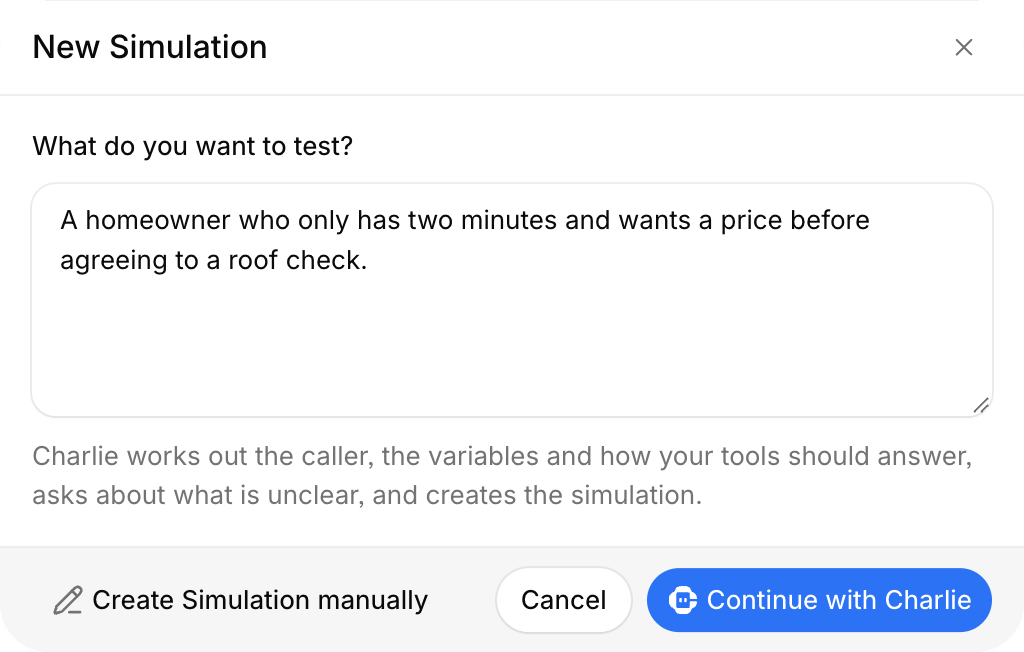
- Select Continue with Charlie to let Charlie write the simulation. Charlie reads the agent, works out the tester, the variables, and the tool answers, and asks about anything that is unclear.
- Select Create Simulation manually to fill in the form yourself.
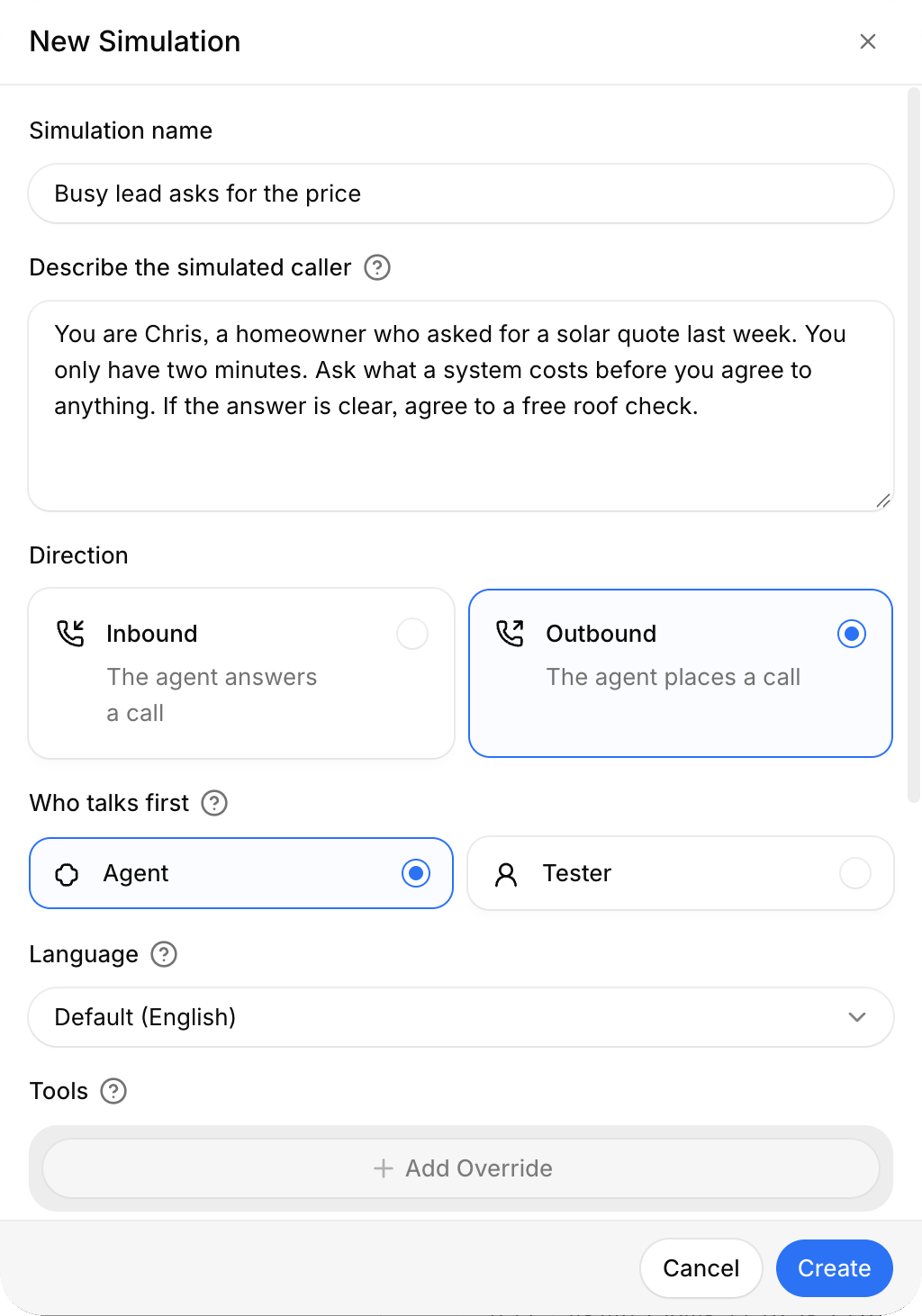
After you select Create, the Add Checks step lets you add checks for the new simulation. Select Done to skip it.
To create a simulation from a real call, open the call in Conversations and select Create simulation. The button shows once the call is processed and the caller has said something. Charlie builds the simulation from the transcript, replaces personal data with made-up data, and adds the simulation to the call’s agent.
To use a simulation of another agent, open the menu next to Add new Simulation and select Add existing simulation. Both agents then share the simulation, so an edit changes it for both. To change it for one agent only, use Duplicate in the simulation’s menu, edit the copy, and select Remove from agent on the shared simulation.
Run a simulation
Before you run, make sure the account has an active phone number that the agent can use. No call is dialed, but each simulated call takes that number as its own. Select Run on a simulation. The Run dialog opens.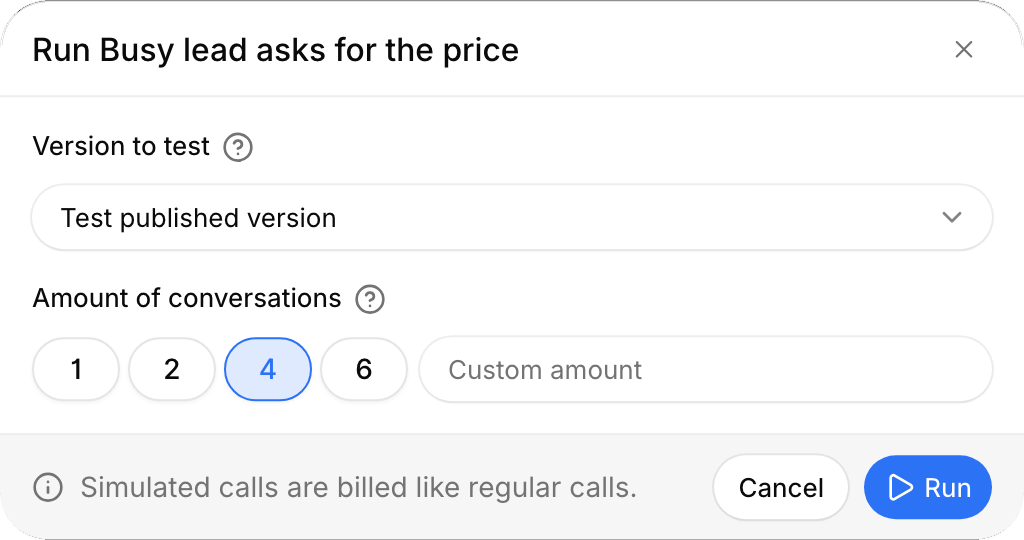
- Version to test is Test draft, Test published version, or a version under Older versions. The draft is selected when it has changes, otherwise the published version.
- Amount of conversations is how many conversations the run places. Pick 1, 2, 4, or 6, or enter a custom amount up to 20.
Review the results
Select a conversation to open it next to the list. A finished conversation shows the recording, the check results, and the Overview and Transcription tabs. While a conversation is in progress, you see the live transcript. Select Listen, the headphones button, to hear the call.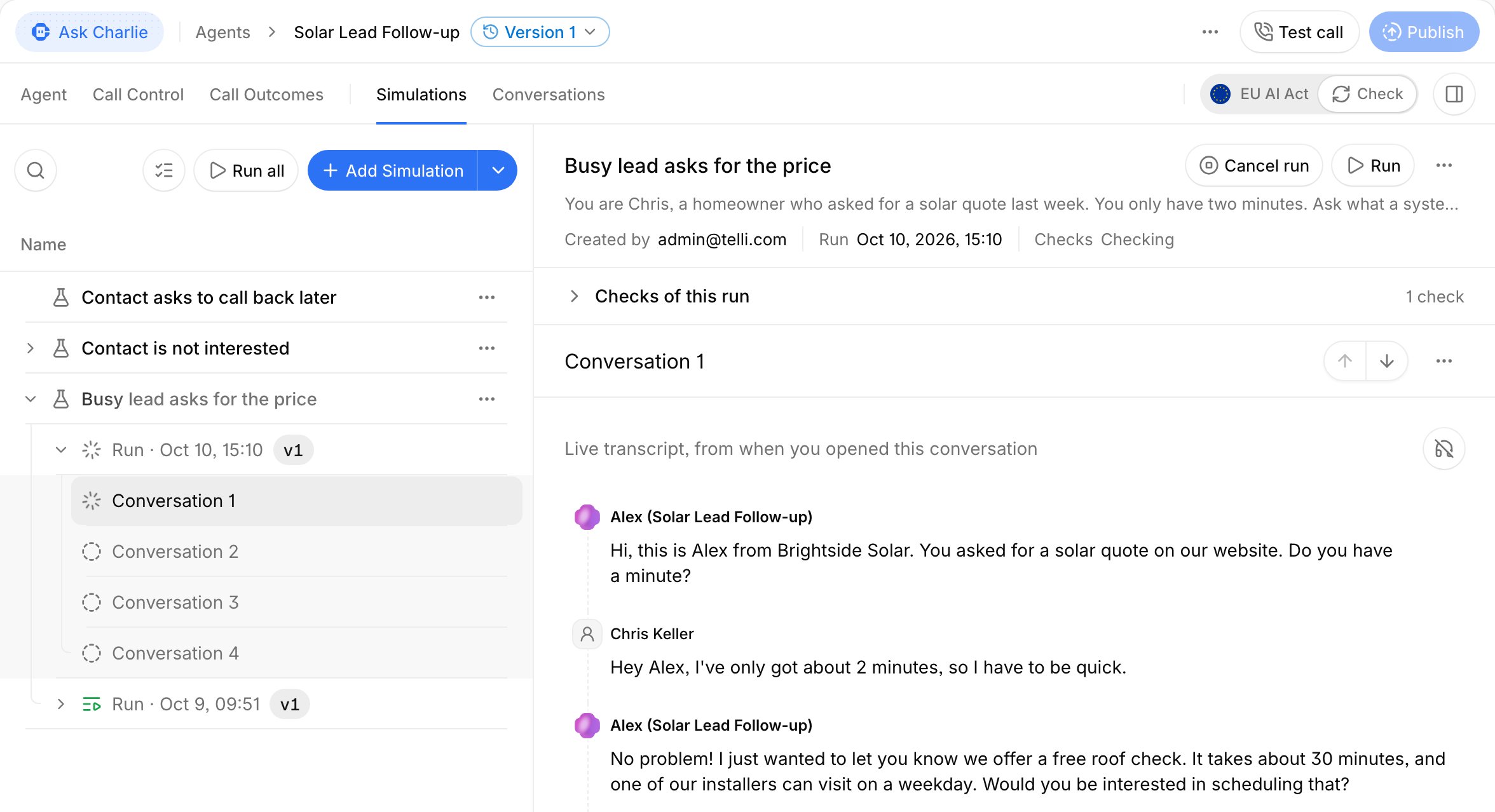
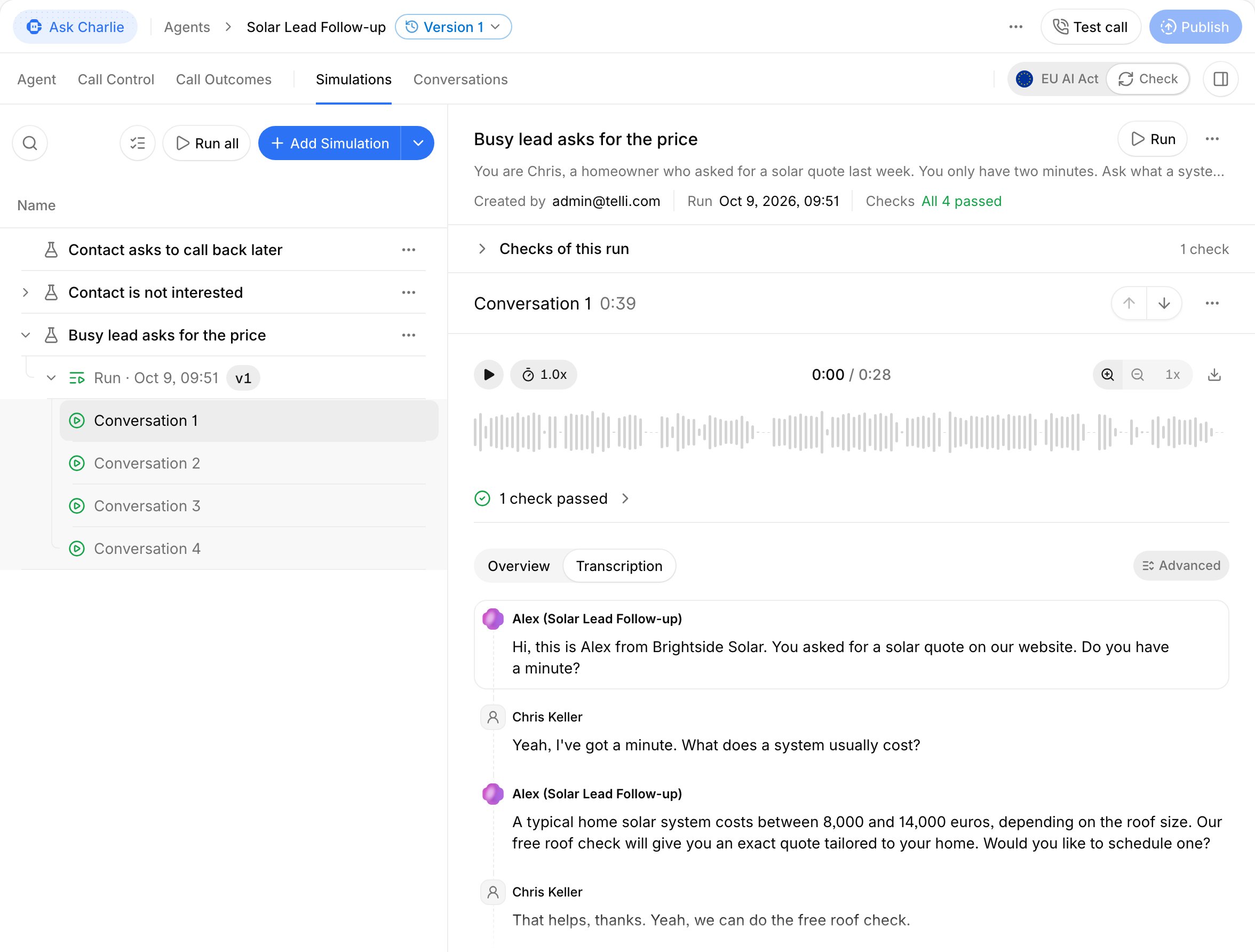
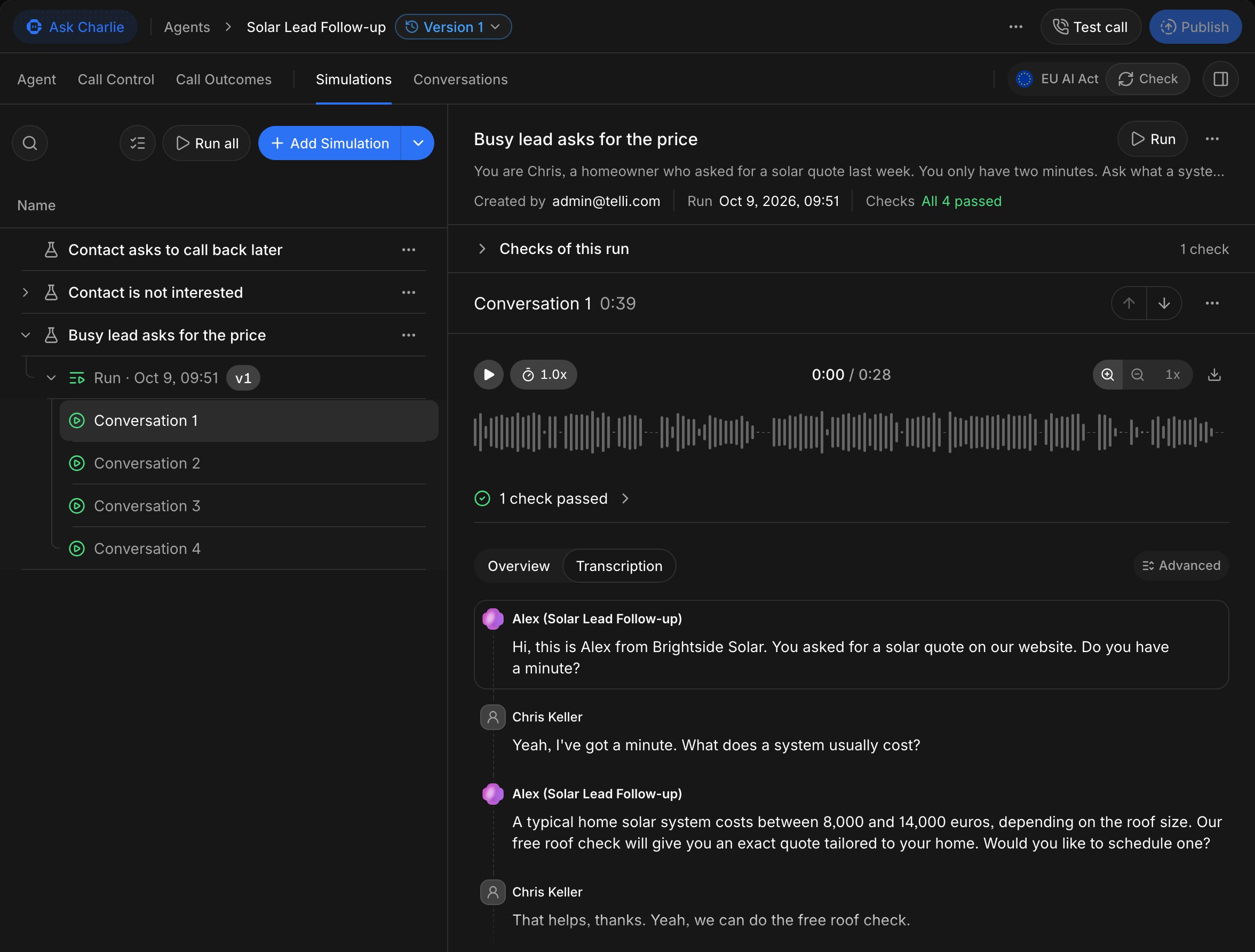
- Run again opens the Run dialog with the version and the amount of conversations of that run. The new run uses the simulation as it is now. For a run of the draft, it selects the current draft, or the published version if the draft has no changes.
- Cancel run hangs up the conversations in progress and skips the rest.
- Delete removes a run that has ended, with its conversations.
Check conversations automatically
A check looks at every conversation of a run and marks it as passed or failed. Select Checks on the Simulations page, on an agent’s Simulations tab, or in a simulation’s menu. The dialog lists the checks for all agents and the checks for the agent or the simulation you opened it from. For other agents and simulations, it says where their checks are listed.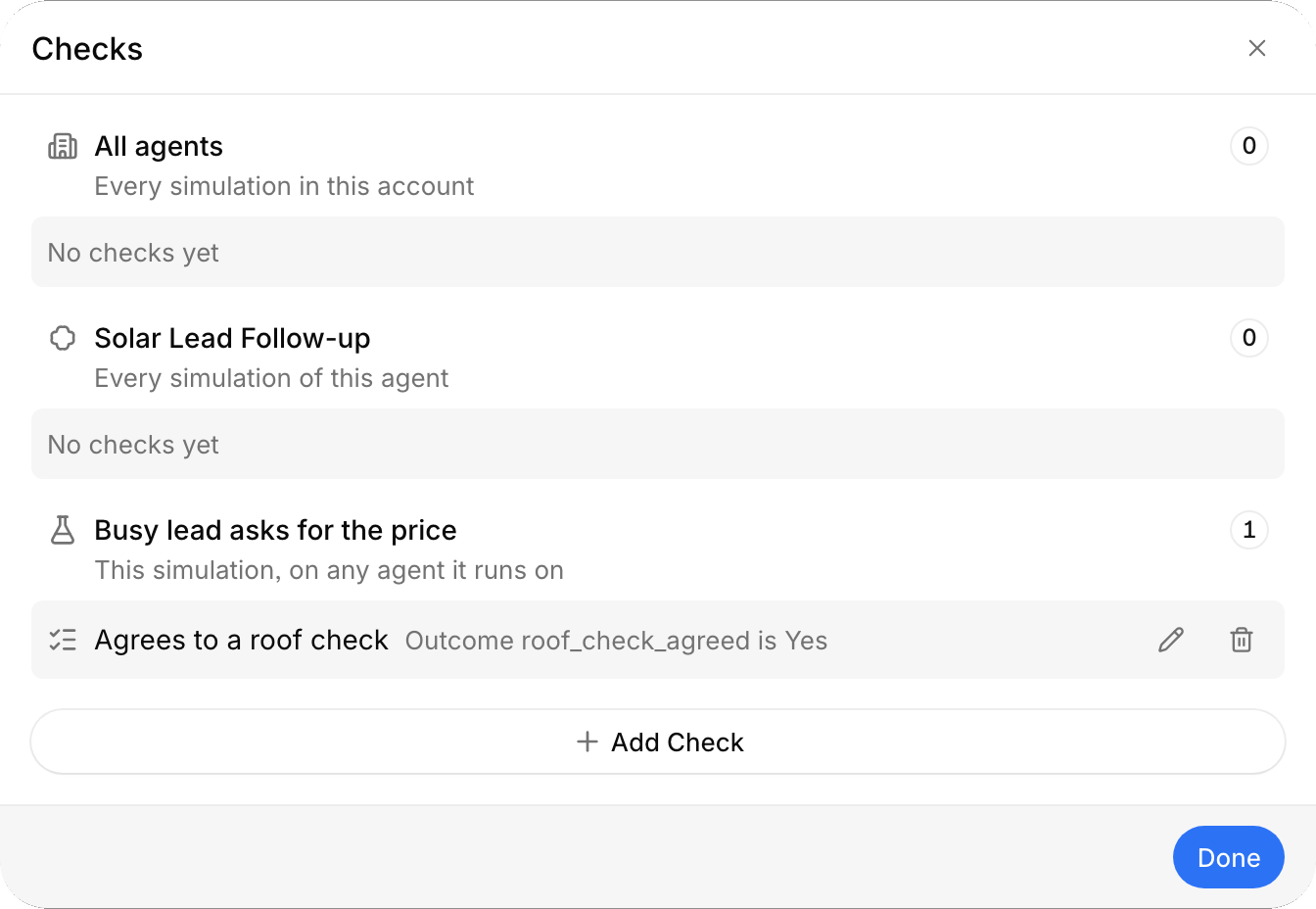
- All agents applies to every simulation run in the account. If the tested agent version does not have the outcome or the tool that the check names, the run leaves the check out and shows a warning. On an agent’s tab, such a check shows Not checked here.
- One agent applies to every run of that agent.
- One simulation applies to the runs of that simulation, on any agent.
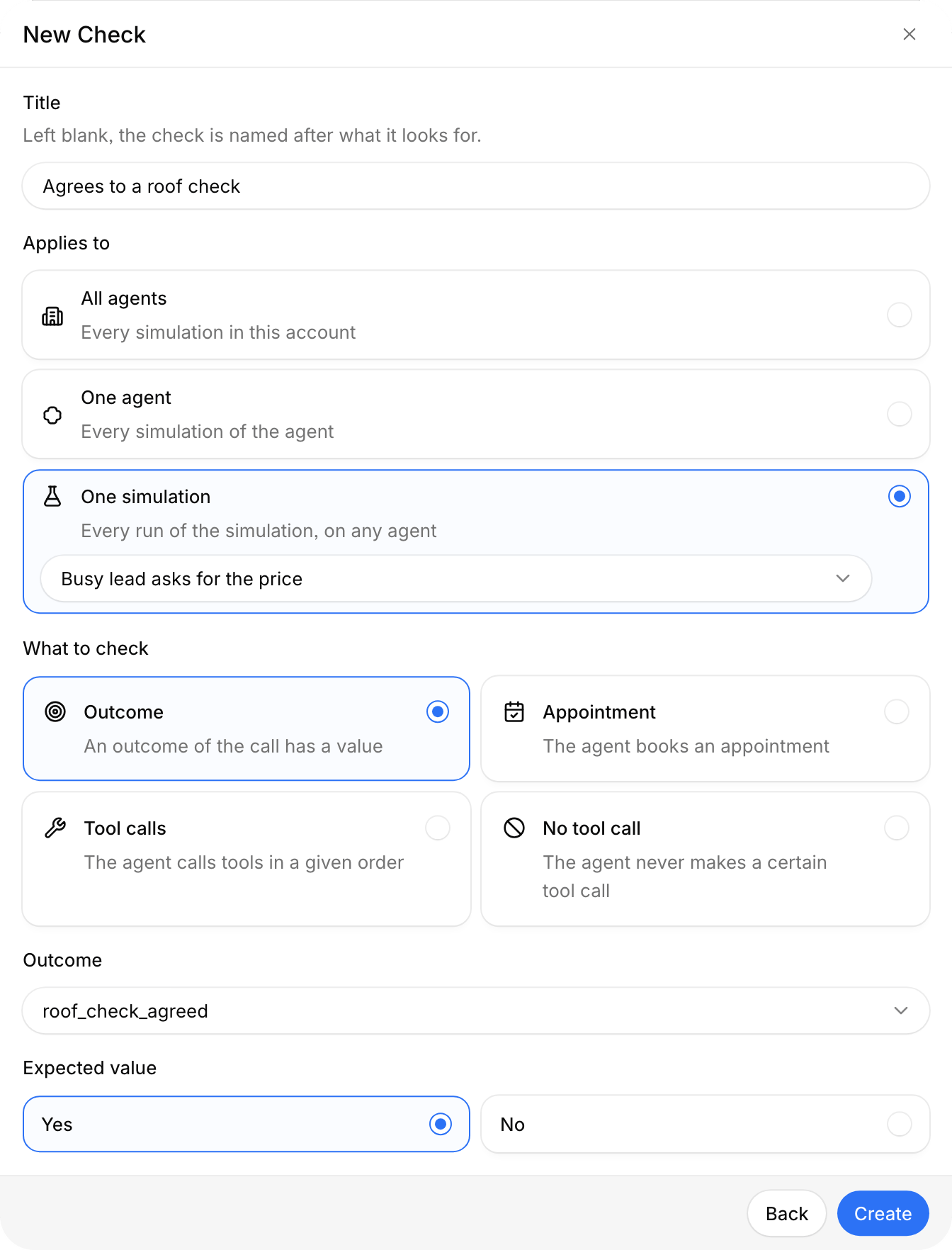
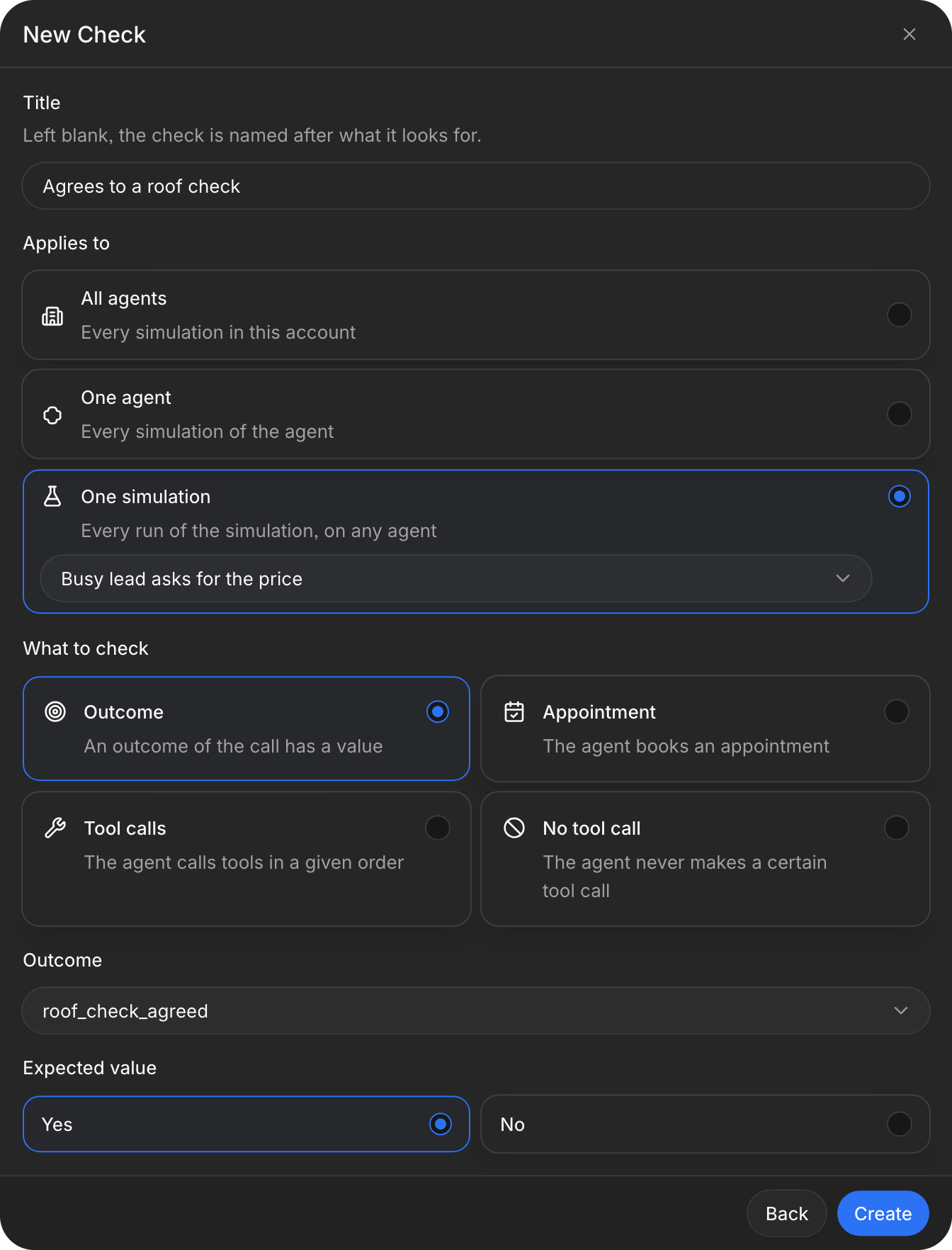
A new, edited, or deleted check changes only runs that start after the change. Earlier runs keep their checks and results. Each result is Passed, Failed, or Could not be checked. A conversation shows Not checked when its run ended before the check, for example after Cancel run.
How simulated calls work
- No phone call. The agent and the tester meet in a browser call, and no contact is created. The account still needs a phone number for the agent, as described in Run a simulation.
- Tools. Calendar tools, SMS, WhatsApp, call-me-later, and transfers are always simulated, so nothing is booked, sent, or transferred. Your own tools never run for real. Without a set answer, each call gets a new generated answer, so two calls of the same tool can disagree. Set an answer when the result matters. Ending the call, collecting data with its address validation, knowledge base search, and web search run as in a real call. Web search returns live results.
- Length. A conversation lasts at most as long as the simulation’s Max call length, or less if the agent’s or your plan’s maximum call length is shorter.
- Data. Each conversation is recorded and transcribed, whatever the agent’s recording settings or the tester’s consent, and its outcomes and collected data are analyzed. Simulated calls do not show in Conversations, and they send no webhooks, emails, CRM updates, or workflow triggers. Data retention rules do not delete simulated calls.
- Billing. Simulated calls are billed like regular calls.
- Time. Conversations run on the current date and time.
- Limits. The tester cannot interrupt the agent in the middle of a sentence. A Duo agent that uses the browser cannot run simulations yet.