

Collect Data is temporarily unavailable for Duo agents. Your agent can ask for information in the conversation, but the structured collection tasks do not run.
At a glance
- Configure fields per agent under Collect Data
- Choose a data type: Email, License Plate, Digits, Address, or Custom
- Add optional validators to Custom fields for data quality
- Customize task behavior when a field needs special collection or confirmation instructions
- View results in Conversation History and receive them via webhook
Collect Data vs Call Analysis: Call Analysis
passively extracts information from the transcript after the call. Collect
Data is an active, in-call process — the agent asks the caller directly,
validates their response, and confirms it before moving on.
Data types
License Plate
Collects and validates a license plate number. Currently supports German license plates.Digits
Collects number-only values such as order numbers, PINs, or customer IDs. You can optionally set minimum and maximum length.Address
Collects a postal address from the caller, including street address, ZIP/postal code, city, and country. The agent validates the address with Google Maps, asks for missing details when needed, and confirms the final address with the caller. Address entries include latitude and longitude in call responses and thecall_ended webhook when validation produced coordinates.
Custom
Collects any freeform data with optional validators for quality control:Setting up Collect Data
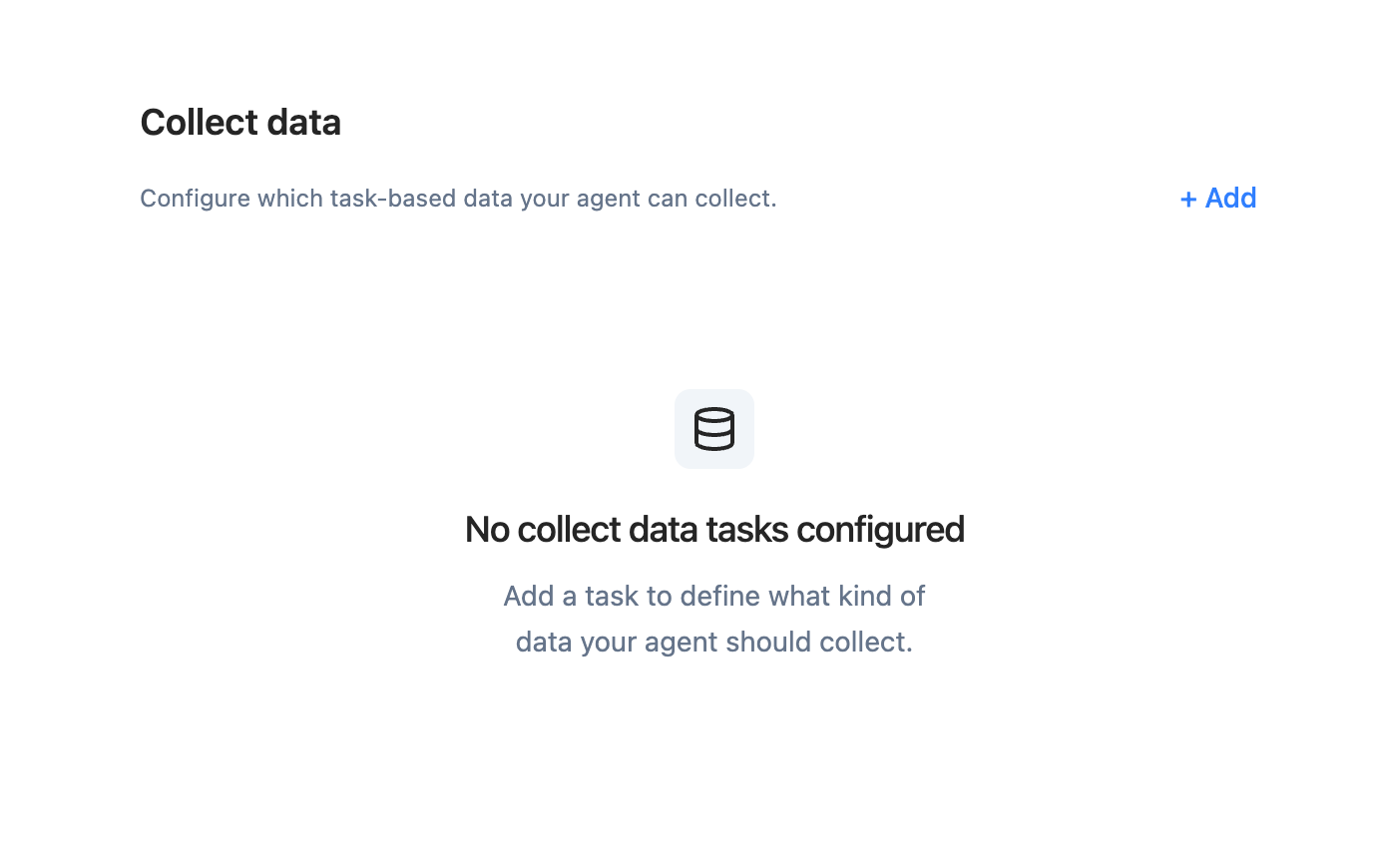
- Go to Agents > [agent] > Collect Data
- Click Add and select a data type (Email, License Plate, Digits, Address, or Custom)
- Set the key — this identifier appears in the webhook payload and UI
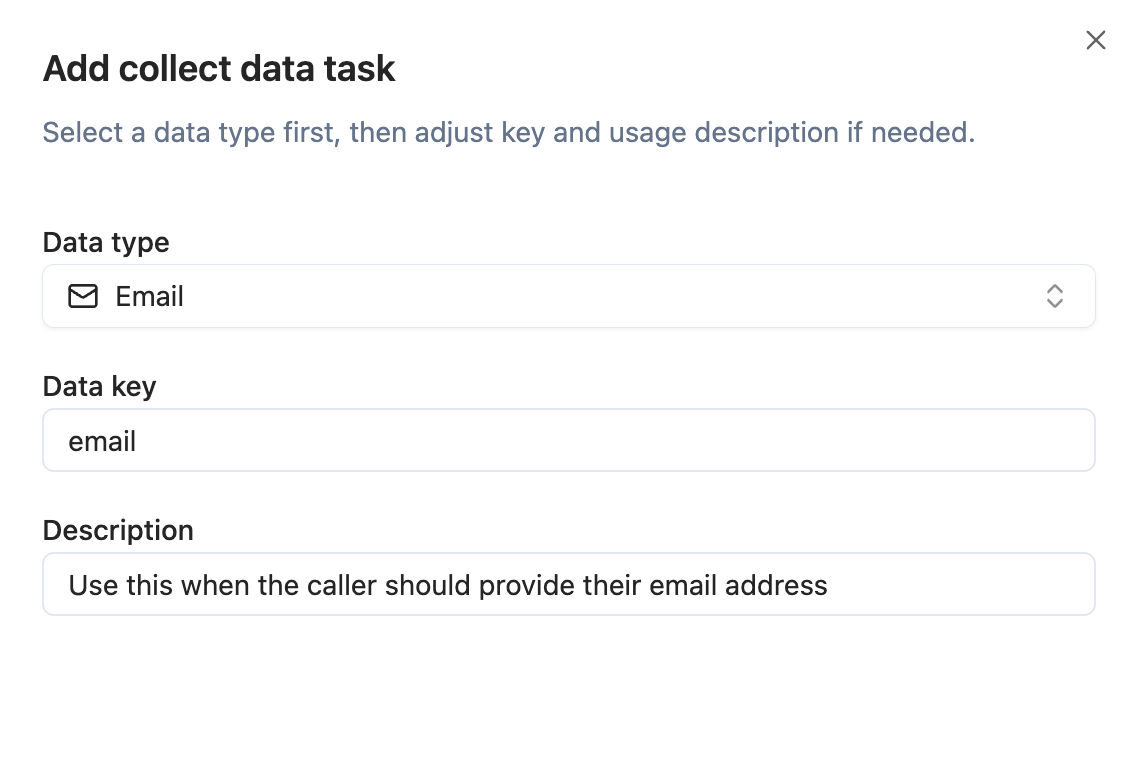
- Keep Behavior set to Auto for the built-in collection flow, or choose Prompt to add instructions for how this specific field should be collected and confirmed.
Use the main prompt to tell the agent when to start a Collect Data task. Use
the task’s Behavior setting for how the collect-data sub-agent should ask,
repeat, spell back, or confirm the value once the task has started.
How it works during a call
When the agent determines it’s time to collect data (based on your description), it starts an interactive sub-conversation:- The agent asks the caller for the information
- The caller provides the data
- The agent validates it against the configured type and constraints
- The agent reads back the value and asks the caller to confirm
- The caller confirms or corrects it
declined.
Adjust the prompt
Adding Collect Data tasks makes acollect_data tool available to the agent, but the agent needs instructions in the prompt to know when to trigger it. Open the Agent Builder and add clear instructions that specify the trigger and the order relative to other steps.
Example: Appointment booking with email collection
Results
Conversation History
Navigate to Conversation History, click on a call, and scroll to the Collect Data section. Each field shows:- Field name — the key you defined
- Value — the collected data, or empty if not collected
- Status badge:
- Confirmed — caller confirmed the value
- Declined — caller declined to provide the data
- Error — collection failed due to an error
- In progress — collection started but the call ended before completion
Webhooks
Collect Data results are included in thecall_ended webhook event as a collected_data field. Address entries also include latitude and longitude when address validation produced coordinates. See the webhook documentation for the full payload format.
Best practices
- Write clear descriptions so the agent knows exactly when and what to collect. Vague descriptions lead to inconsistent collection behavior.
- Add validators to Custom fields to reduce errors. A regex validator with a human-readable description helps the agent explain requirements to the caller.
- Mention collection in your prompt — reference when the agent should trigger each collection task in your prompt instructions.
- Use Behavior for collection style — put spelling, read-back, repeat, and confirmation instructions in the task’s Behavior setting rather than the main prompt.