

Code tools and code nodes are available on Scale and Enterprise plans.
Build it with Charlie
The fastest way is to ask Charlie. Describe what the code should do, which API it calls, and which credential it should use. Charlie writes the code, sets up the inputs, and connects the credentials and Salesforce or HubSpot connections that already exist in your account. For a code tool, Charlie then runs the code with test values and tells you what the agent would receive. The test requests are real. Charlie runs requests that only read data without asking, and asks you first before anything that creates, changes, or deletes data, sends a message, or calls a webhook.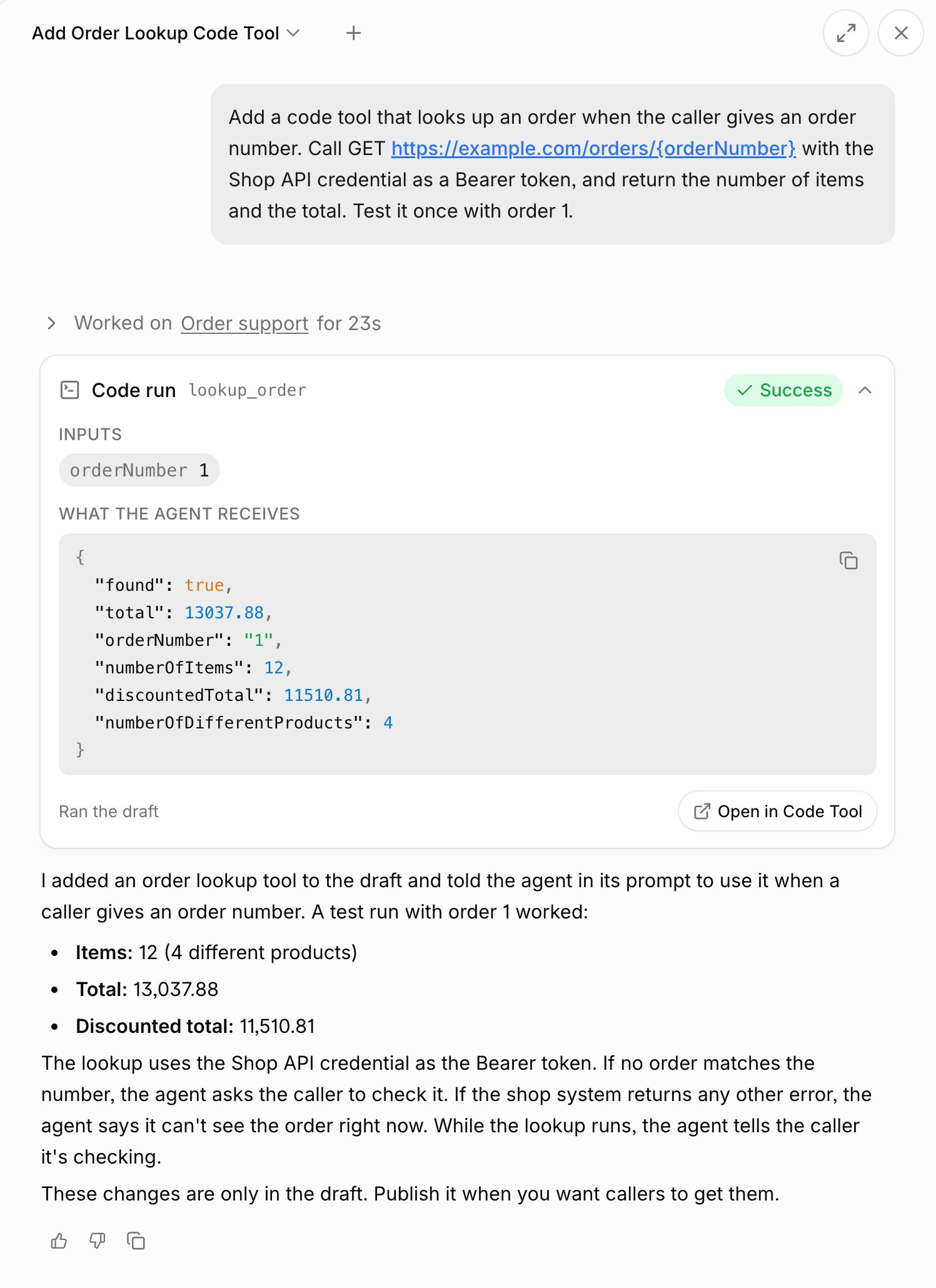
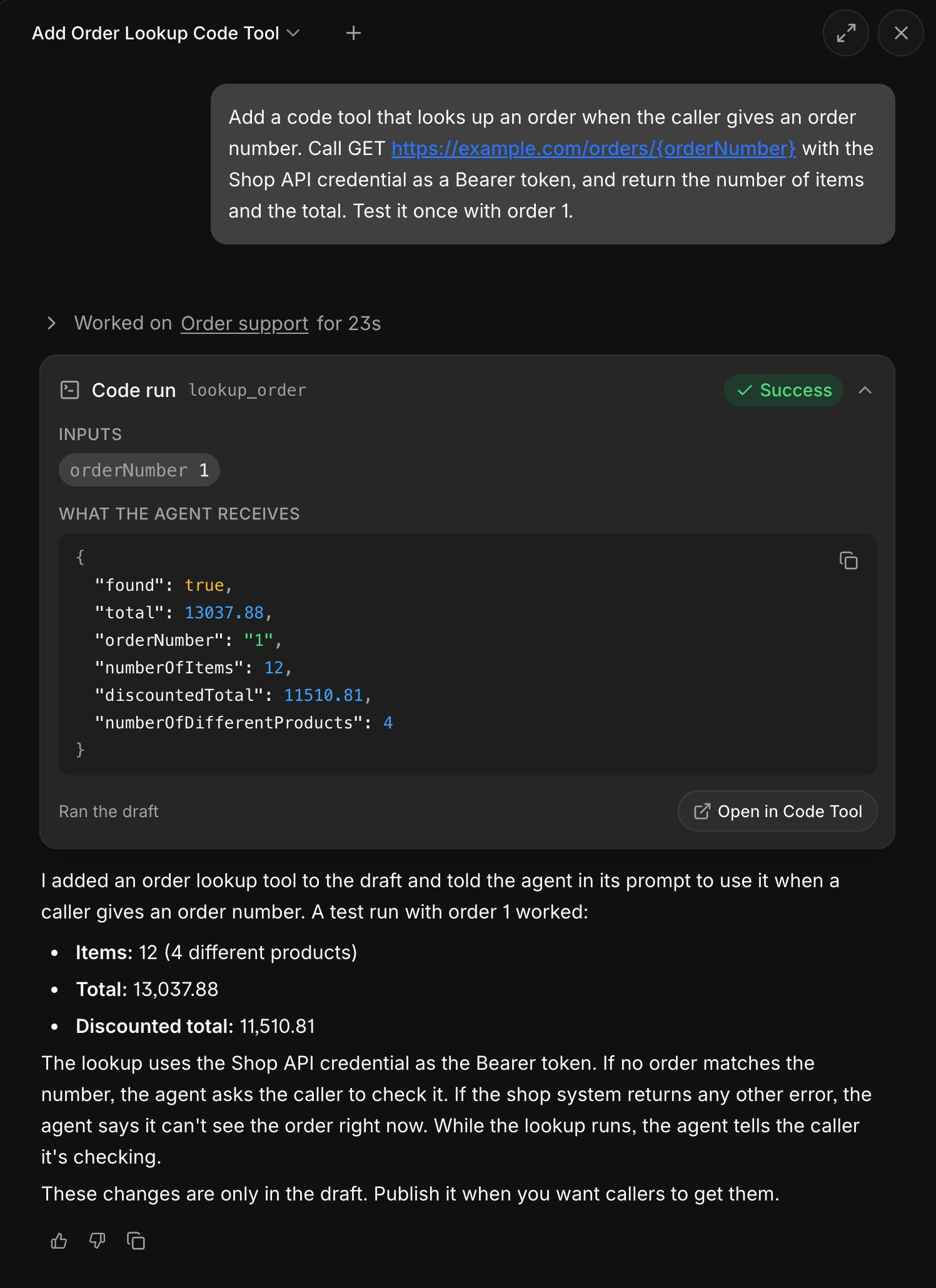
Charlie adding an order lookup tool and testing it once
Write the code
The code is one JavaScript module that exports an asyncrun function. telli calls it with one object:
A code tool can return any JSON value; the agent receives it as the tool result. A code node must return a JSON object; later blocks read it as
result. When something fails, throw an Error with a short message that says what went wrong.
- It can use standard Web APIs, such as
fetch,URL,URLSearchParams,Headers,AbortSignal,TextEncoder,TextDecoder,crypto.subtle,crypto.randomUUID,atob, andbtoa. Requests can reach any public address. - It cannot import npm packages or other modules.
- The clock is UTC. Pass
timeZonetoIntl.DateTimeFormatwhen you format dates. - Top-level variables can carry over from an earlier run of the same code and can also start fresh at any time. Keep values that change inside
run. console.logoutput is not shown anywhere. Return or throw what you need to see.
Limits
Add a code tool
- Open the agent and go to Tools → Code tools. Select Add code tool….
- Write the code in the Code editor on the left.
-
On the Configure tab, set:
- Select Done, then publish the agent. Mention the tool in the prompt when the agent should use it under specific conditions.
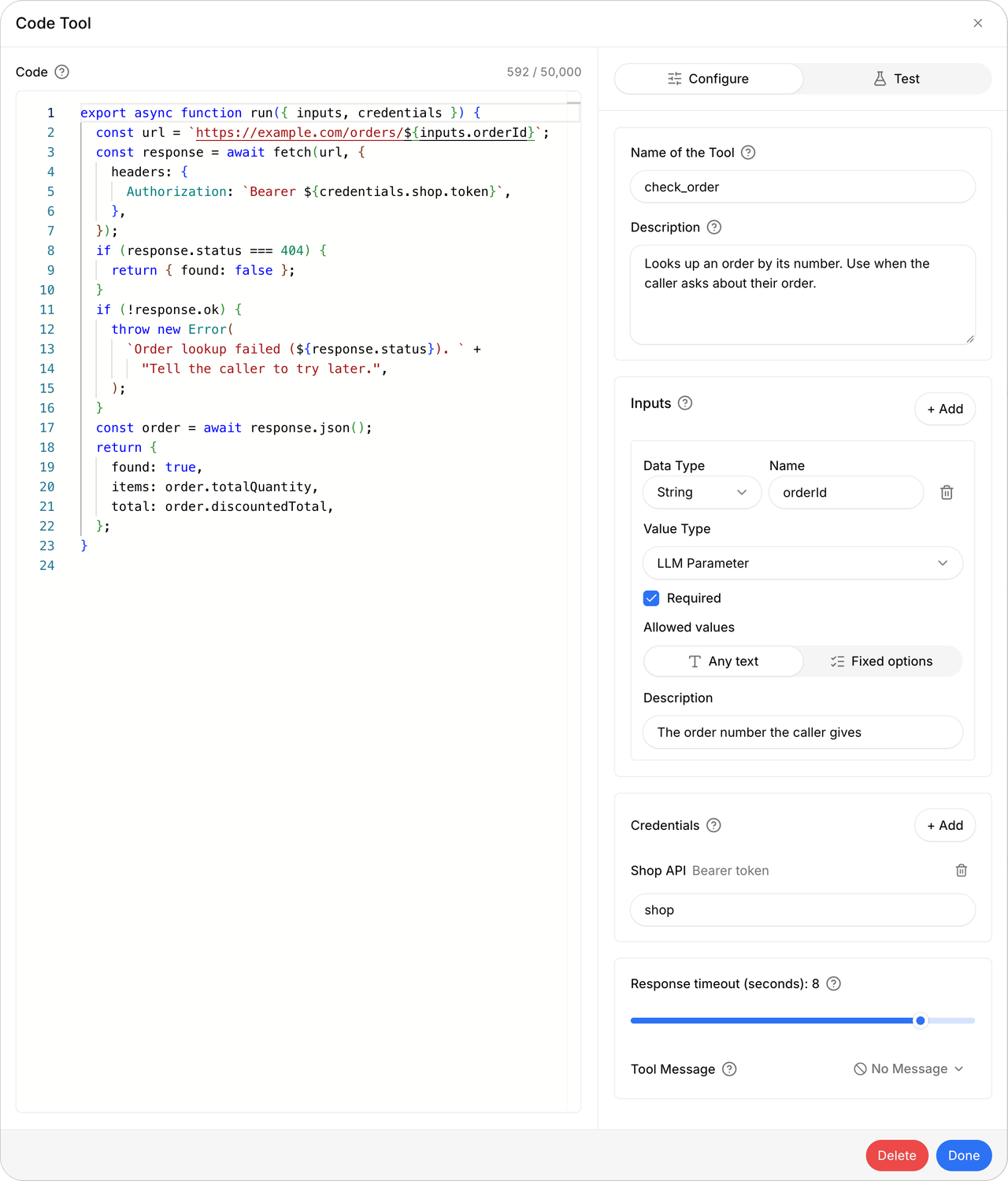
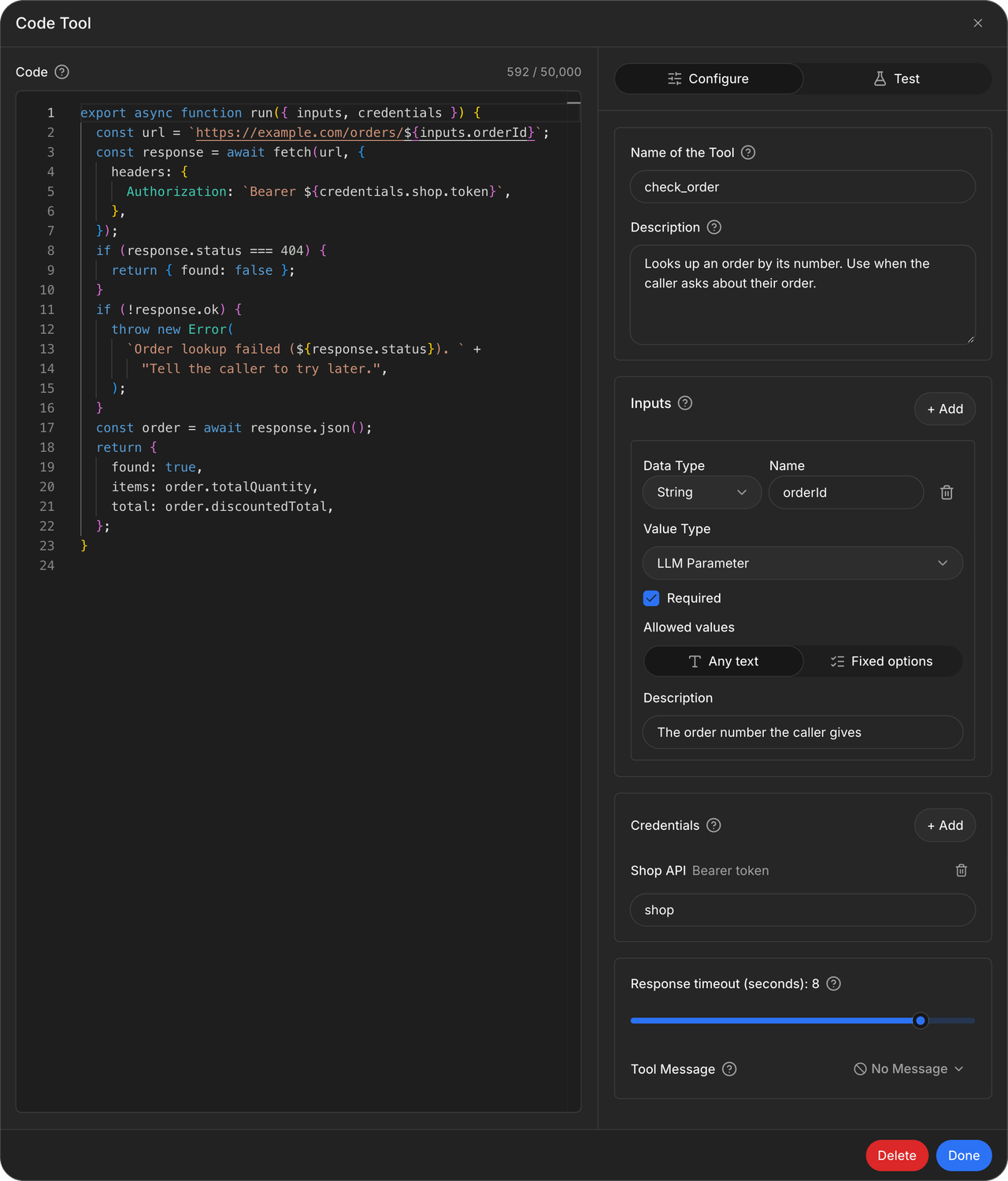
A code tool with an input, a credential, and an 8-second response timeout
Test a code tool
Open the Test tab of the tool, fill in the Test inputs, and select Run. telli saves the draft and runs its code the way a call does. Secret inputs and credentials use their saved values. A test run sends real requests: anything the code creates, changes, or deletes in your systems really happens. What the agent receives shows the result, or the message the agent would get on a failure. When the error names a line of your code, select Go to line to jump to it.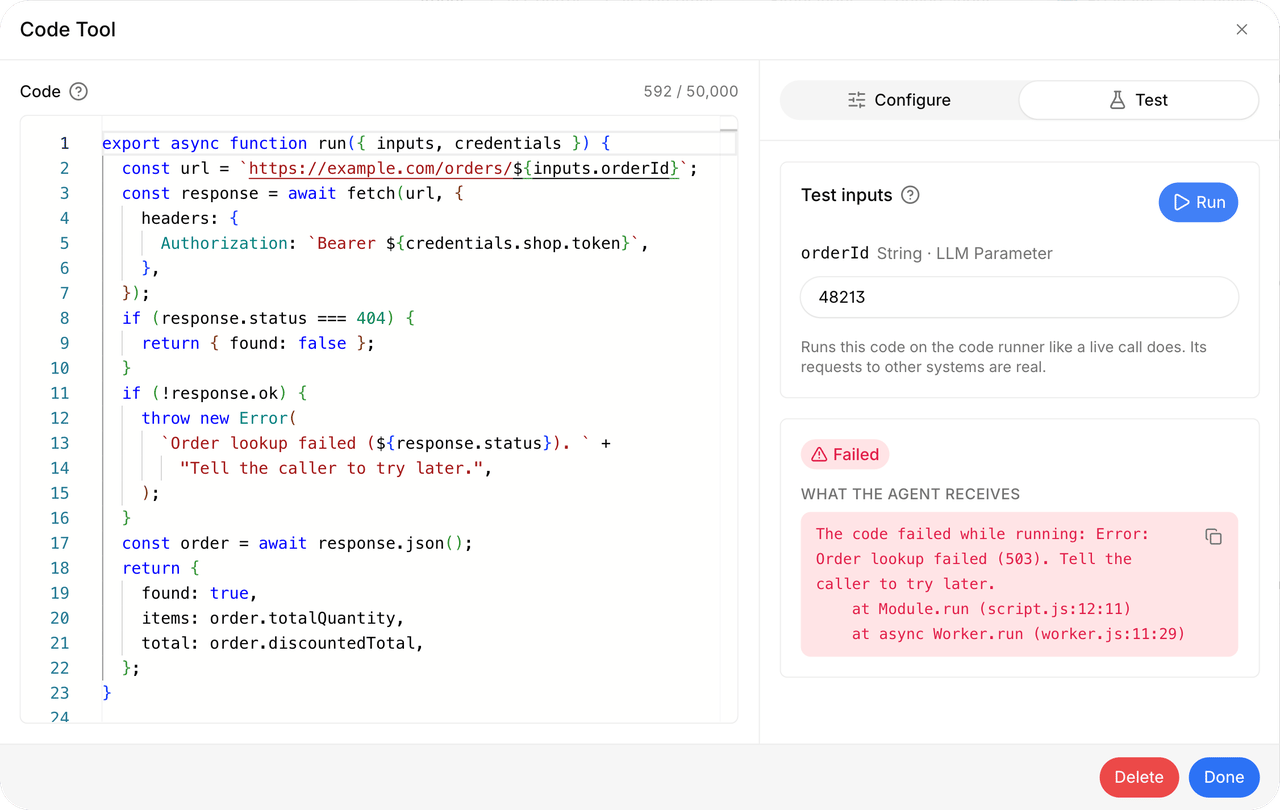
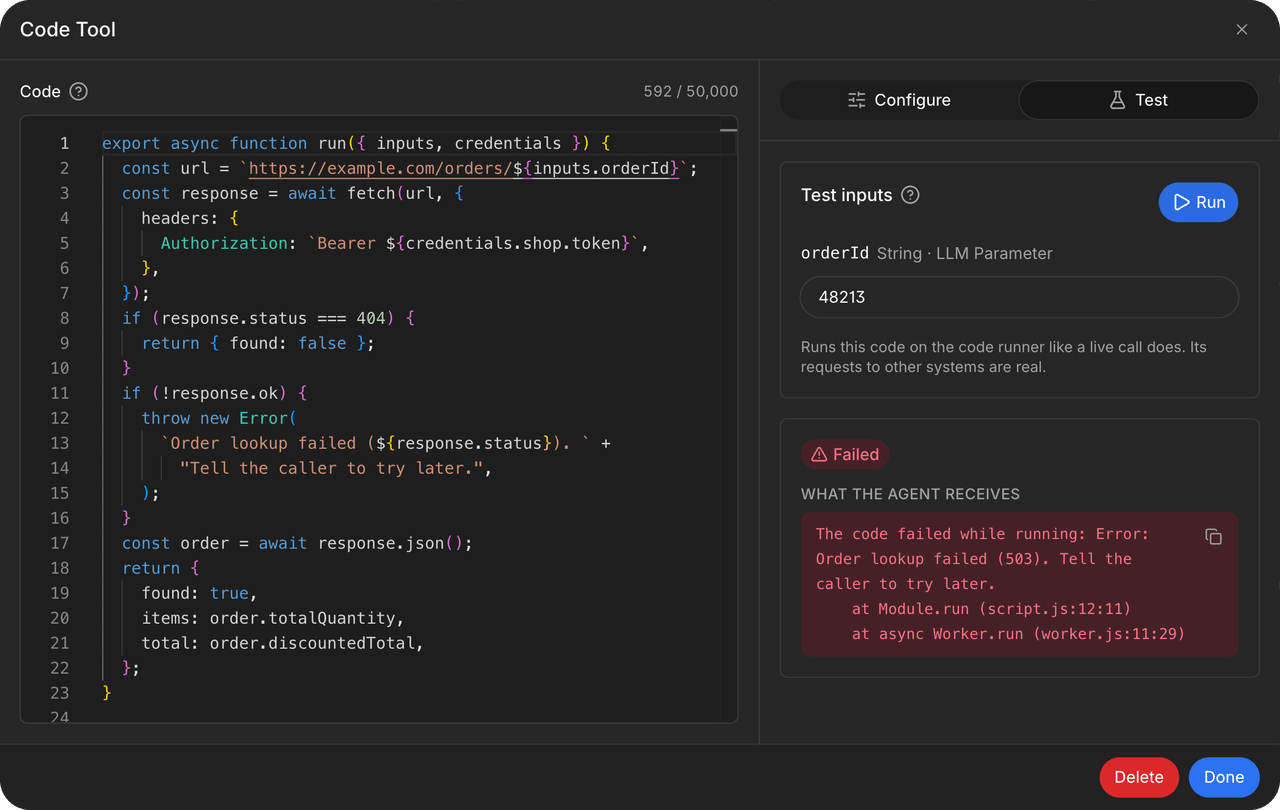
A failed test run shows the message the agent would receive
When a code tool fails in a call
The agent gets a message instead of a result. The call continues. When your code throws, the agent receivesThe code failed while running: followed by the error, its line, and its stack, cut to 1,000 characters. The agent words your message for the caller, so write it for the agent, for example The order system returned 503. Tell the caller you cannot check the order right now. For expected outcomes, such as no matching record, return a result with a message instead of throwing.
When a required input has no value, the code does not run and the agent receives Missing required value "<name>". This happens when the agent leaves out a required LLM parameter, or when the contact has no value for a required contact property or system variable. The caller cannot supply a value the contact lacks. If some contacts lack the value, clear Required on the input and handle the missing value in the code.
When the code hits a limit or a credential cannot be loaded, the caller never hears the technical details. The agent tells the caller the request is not possible right now and offers to help another way. The reason stays visible in the test result and in the call history:
The agent reads at most about 100 KB of a result, so return only the values it needs.
In simulations, code tools do not run. They answer with the answer set in the simulation’s Tools, or with a generated answer.
Add a code node
- In the workflow editor, use + on the canvas and select Utilities → Code.
- Under Inputs, select Add input. Give each input a name and map it to workflow data, a fixed value, or a secret.
- Under Credentials, add the credentials the code needs.
- Write the code in the JavaScript editor. Return a JSON object.
- In a later block’s field picker, select the code node’s
resultor one of its fields.
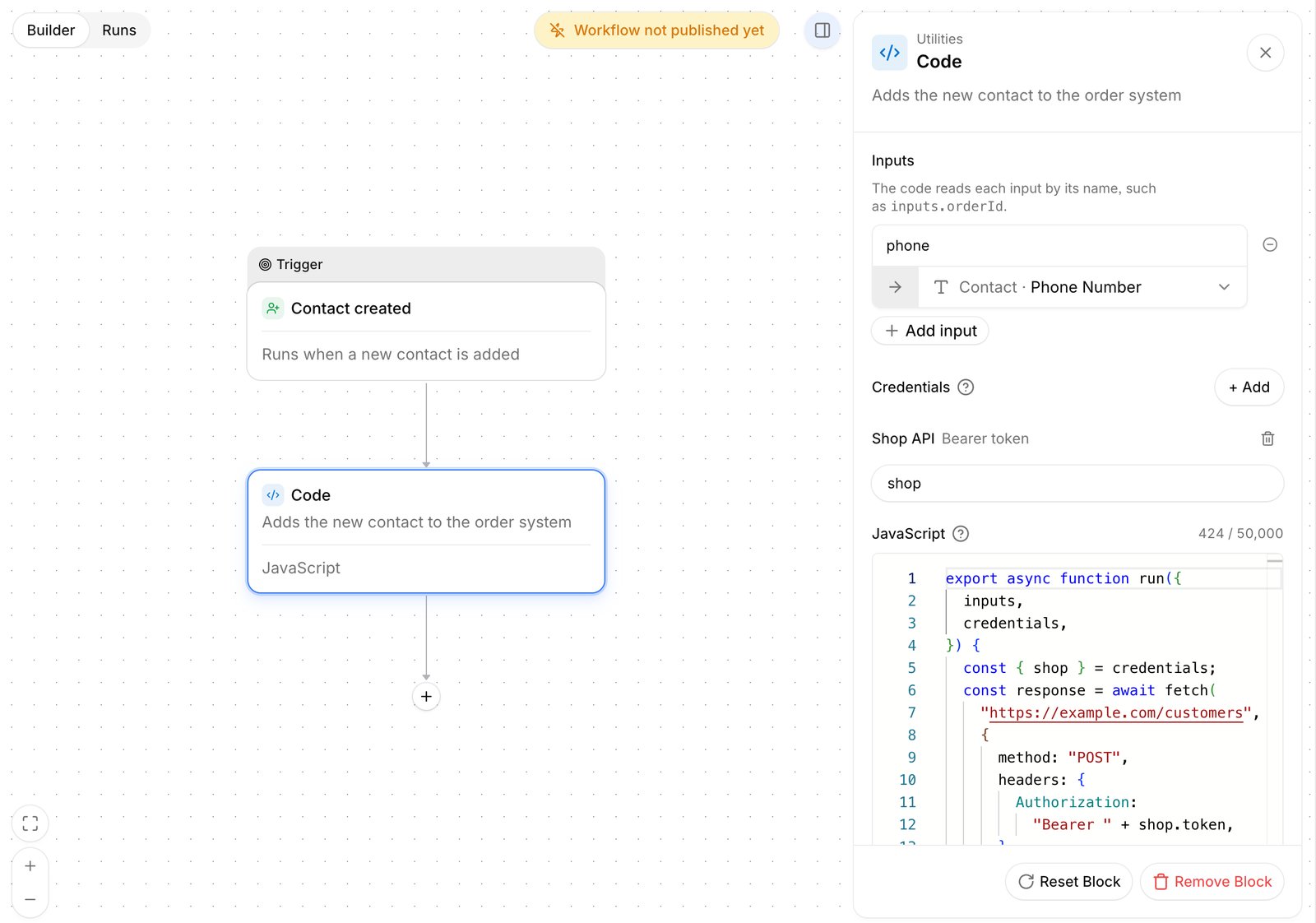
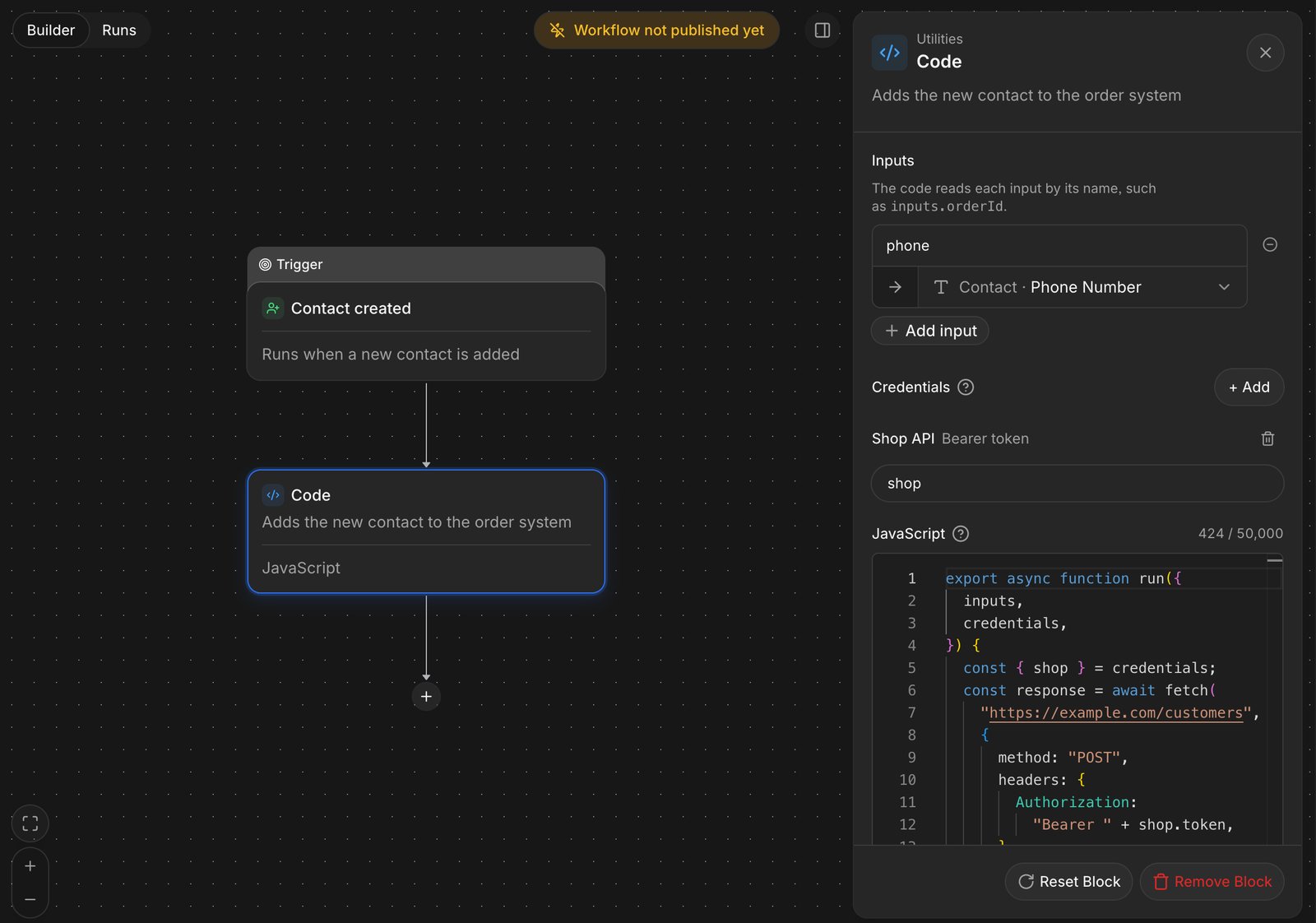
A code node that sends a new contact to an external system
Test a code node
Publish the workflow, then open Runs → Run manually and run it. Manual runs execute real actions, including the code’s requests. In the run details, the code step shows its JavaScript, its Error when the code threw, and its result under Outputs → Load outputs.When a code node fails
The code step is marked as failed, the blocks after it on that path do not run, and the run ends as failed. telli does not retry the step. The run details name the reason: the code threw, timed out, used too much CPU time, ran out of memory, did not return a JSON object, returned more than 1 MiB, had code and inputs larger than 1 MiB together, or a credential could not be loaded.Secrets and credentials
Never write an API key, token, or password into the code or into a constant input. Both are stored as plain text. Use a secret input or a credential instead.- Secret input: Add an input of type Secret. The value is encrypted when saved, and the code reads it like any other input.
- Credential: Under Credentials, select + Add and choose a credential from Settings → Developer, or your Salesforce or HubSpot connection from Settings → Integrations. Give it a name; the code reads it as
credentials.<name>.
telli gets a token for each Salesforce or HubSpot connection before the code runs. It stays valid for the whole run, so the code never refreshes it. A code tool or code node can use up to 10 credentials. If your Salesforce org restricts logins by IP range or locks sessions to an IP address, Salesforce rejects the token when the code uses it.
telli replaces every secret input value and every credential’s token or secret with
[redacted] in the result and in error messages. It only finds the exact value: a secret that the code shortens, encodes, or changes stays readable. Never return or throw a secret.