> ## Documentation Index
> Fetch the complete documentation index at: https://docs.telli.com/llms.txt
> Use this file to discover all available pages before exploring further.
# bookingtime
> Connect bookingtime to telli so agents can check availability and book appointments into your bookingtime calendar during calls.
## Overview
telli connects to bookingtime as an app you install into your organization. Once installed, you sign in to
bookingtime once from telli to confirm which organizations are yours. An agent can then read your live availability
and book appointments directly into your bookingtime calendar while it is still on the phone with the caller.
You connect bookingtime once per telli account. Each agent then chooses which of your connected organizations it
books into, and which appointment type it books, so different agents can book different things.
## Before you start
* A telli agent that should book appointments
* A bookingtime organization, with admin access to its **Store**
* At least one active appointment template in bookingtime, under **Settings → Appointment templates**
* The telli installation key, which telli gives you when you set up the integration
## Install the telli app in bookingtime
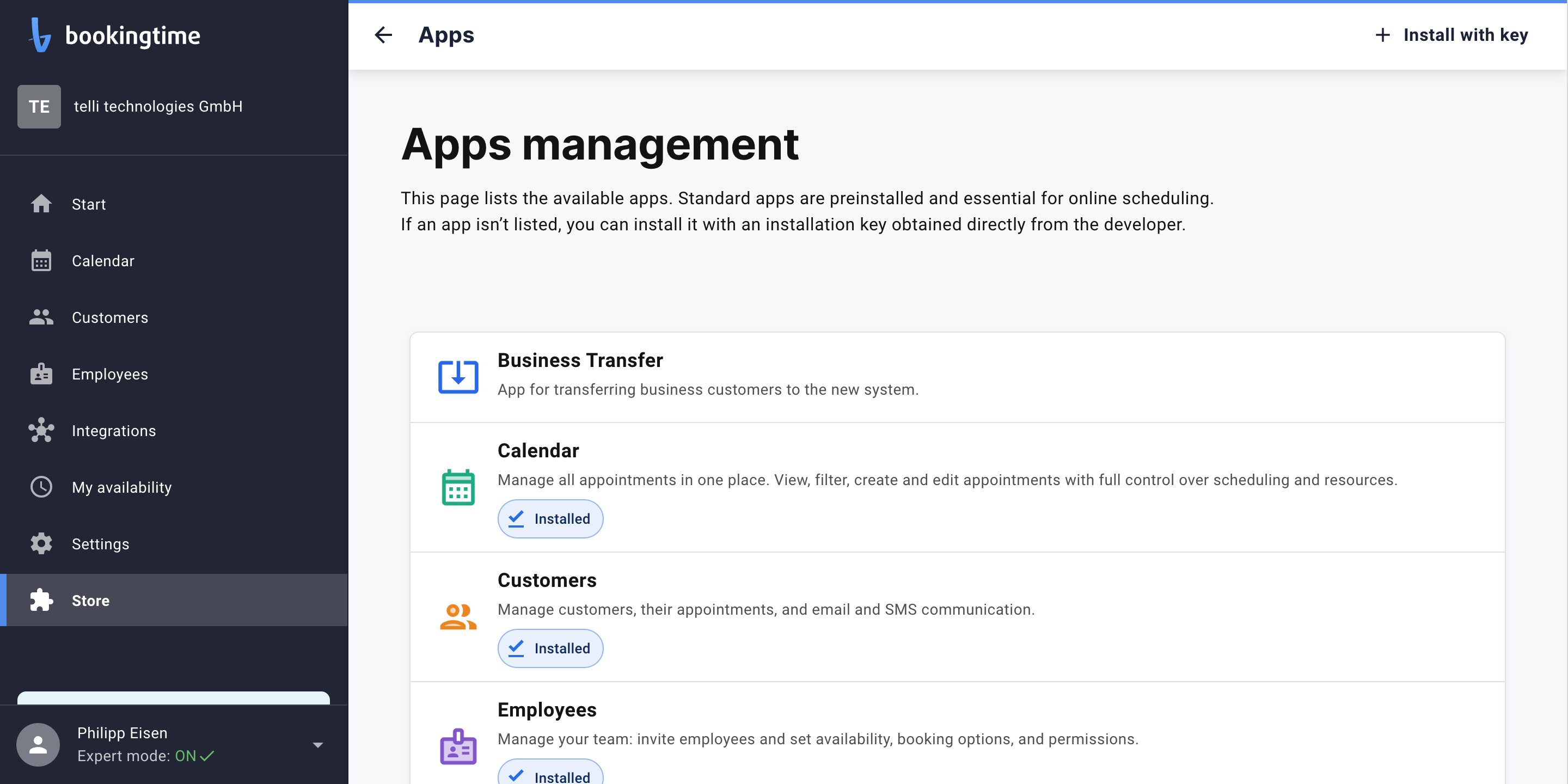
In bookingtime, go to **Store → Apps**, then choose **Install with key** in the top right.
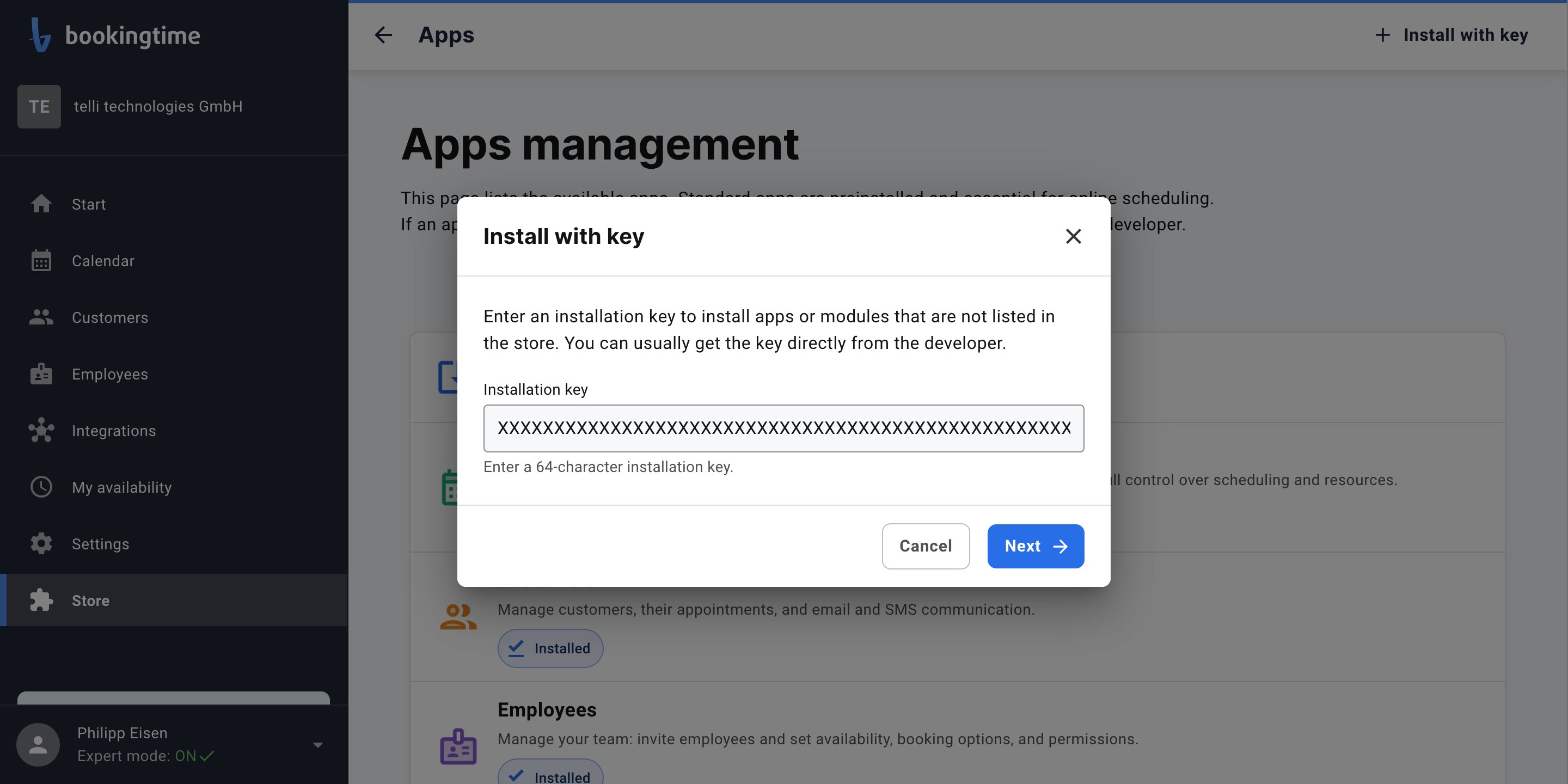
 Paste the 64-character installation key telli gave you, then choose **Next**.
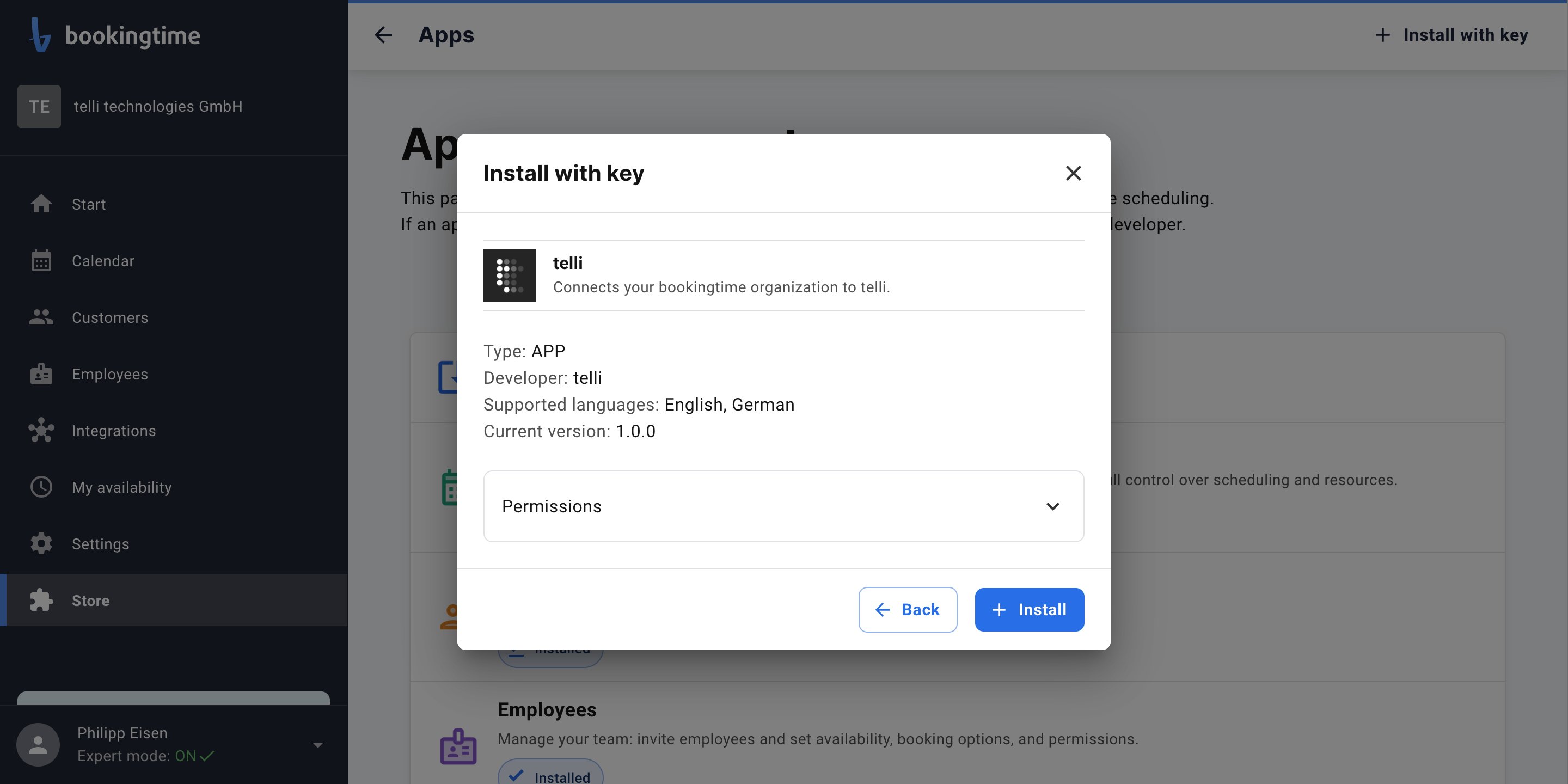
 bookingtime shows what the app can do before you install it. Expand **Permissions** to see the full list.
telli asks for the access it needs to read availability and make a booking, and nothing else.
bookingtime shows what the app can do before you install it. Expand **Permissions** to see the full list.
telli asks for the access it needs to read availability and make a booking, and nothing else.
 | Permission | Why telli needs it |
| -------------------------------- | -------------------------------------------------------- |
| View organization | Confirm which organization you are connecting |
| View booked appointment template | List the appointment types you can choose from |
| View date and time | Read bookable slots |
| View appointments | Read an appointment after booking it |
| Book appointments | Create the appointment during the call |
| Cancel appointments | Cancel an appointment booked by an agent |
| Move appointments | Reschedule an appointment booked by an agent |
| Edit appointments | Correct the details of an appointment booked by an agent |
| Undo cancellations | Reinstate an appointment cancelled by mistake |
| View customers | Match the caller to a customer you already have |
| Add customers | Create a customer record when the caller is new to you |
Choose **Install**. The app appears in your Apps list straight away.
| Permission | Why telli needs it |
| -------------------------------- | -------------------------------------------------------- |
| View organization | Confirm which organization you are connecting |
| View booked appointment template | List the appointment types you can choose from |
| View date and time | Read bookable slots |
| View appointments | Read an appointment after booking it |
| Book appointments | Create the appointment during the call |
| Cancel appointments | Cancel an appointment booked by an agent |
| Move appointments | Reschedule an appointment booked by an agent |
| Edit appointments | Correct the details of an appointment booked by an agent |
| Undo cancellations | Reinstate an appointment cancelled by mistake |
| View customers | Match the caller to a customer you already have |
| Add customers | Create a customer record when the caller is new to you |
Choose **Install**. The app appears in your Apps list straight away.
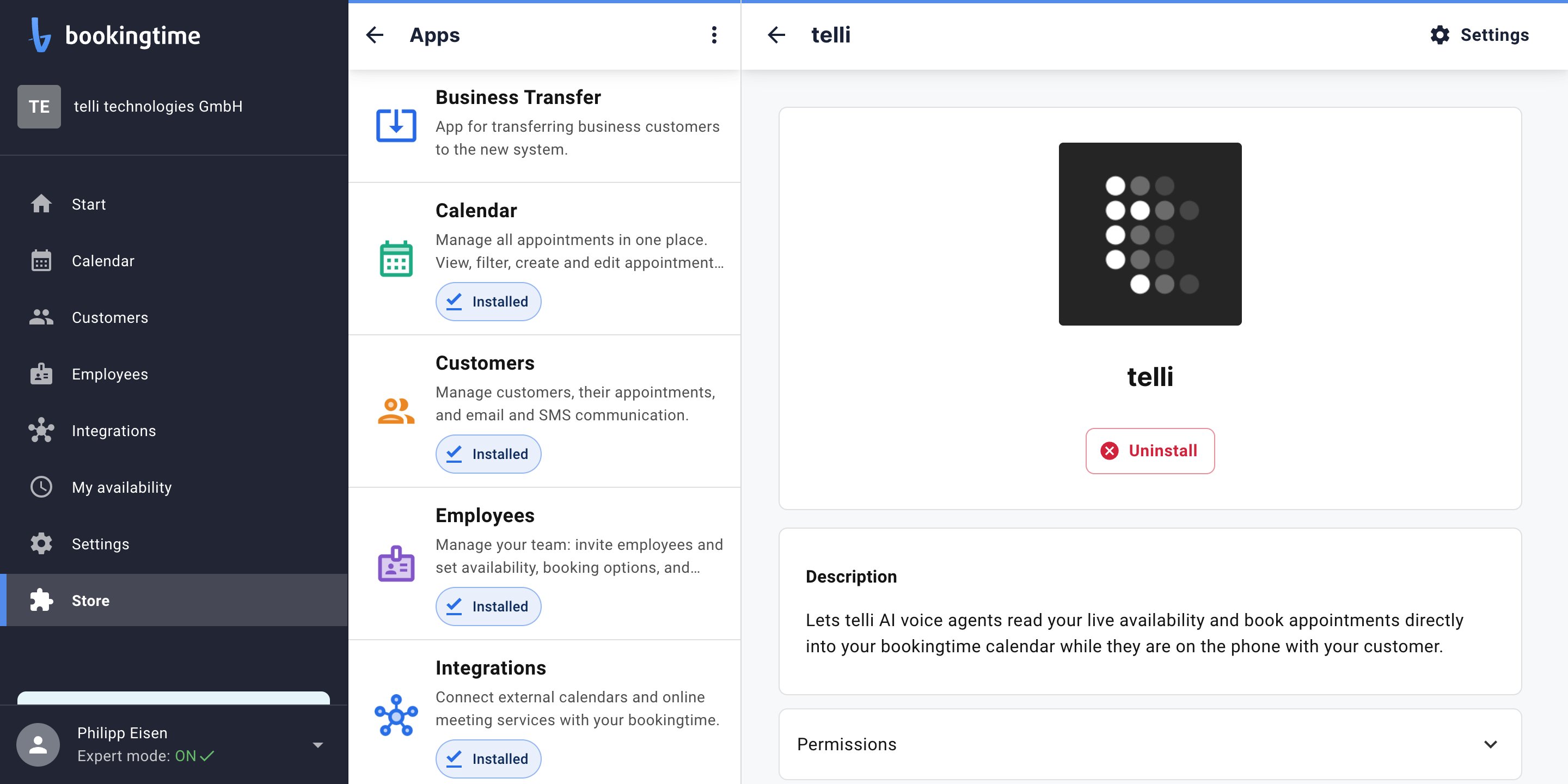 Install the app in every bookingtime organization you want telli to book into. An agent can only book into
organizations where the app is installed and that you connected in the step below.
## Connect bookingtime in telli
In telli, go to **Settings → Integrations**, open **bookingtime**, and choose **Connect**.
bookingtime asks you to sign in with your bookingtime login. This is how telli confirms which organizations are
yours: telli only ever sees the organizations that the account you sign in with is a member of.
telli lists the organizations the connection proved, and you are returned to the integration page. If you belong
to several organizations, all of them are connected and you choose between them per agent.
If bookingtime reports that your user has no access, check that the telli app is installed in that organization
and that your bookingtime login is a member of it.
## Set up an agent
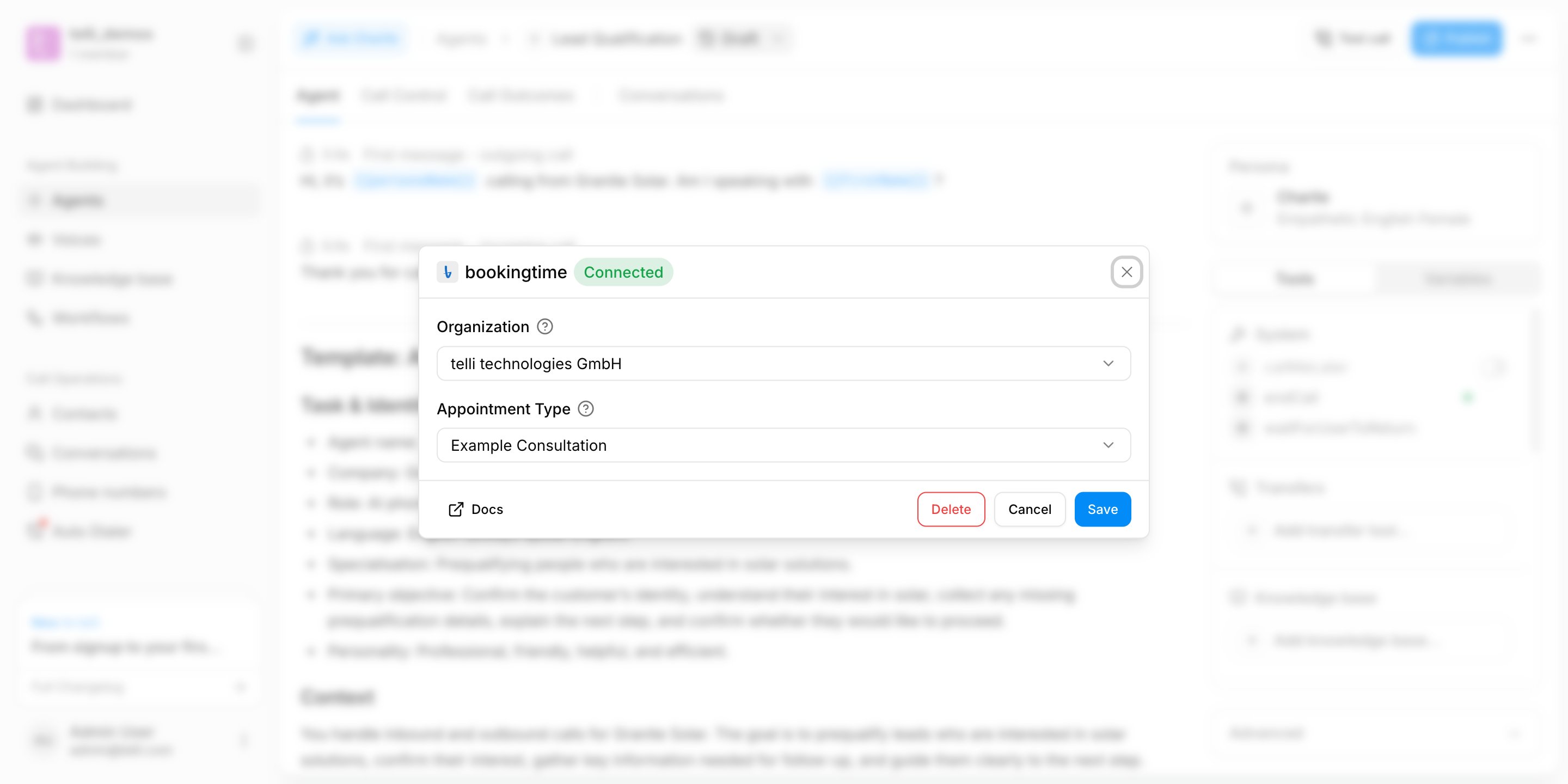
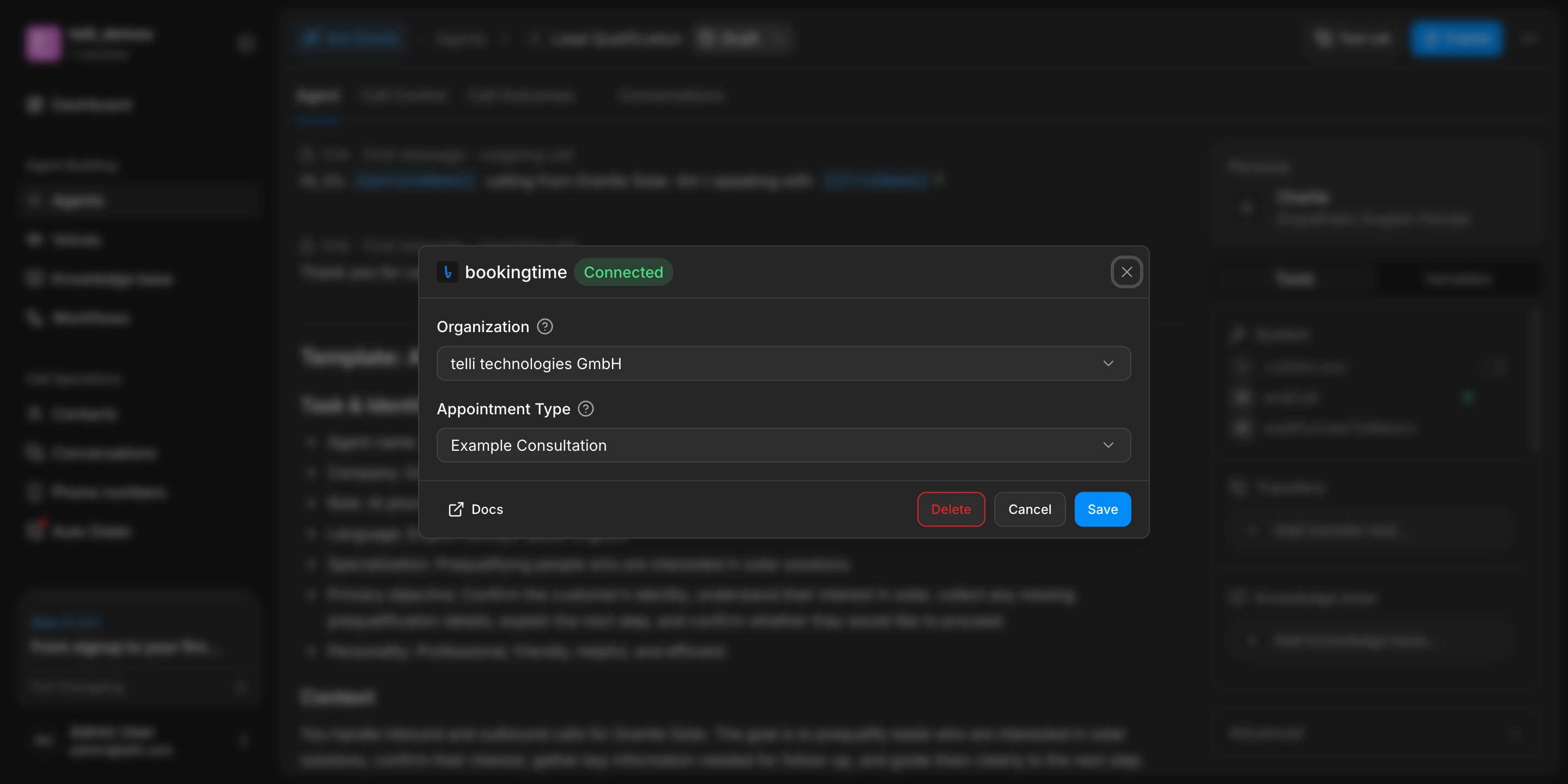
Open the agent you want to configure in telli, then in **Calendar Integration**, select **bookingtime**.
Pick the bookingtime organization this agent books into, from the organizations you connected.
telli loads the appointment types available in that organization. Pick the one this agent should book. If your
organization has only one, telli selects it for you.
Install the app in every bookingtime organization you want telli to book into. An agent can only book into
organizations where the app is installed and that you connected in the step below.
## Connect bookingtime in telli
In telli, go to **Settings → Integrations**, open **bookingtime**, and choose **Connect**.
bookingtime asks you to sign in with your bookingtime login. This is how telli confirms which organizations are
yours: telli only ever sees the organizations that the account you sign in with is a member of.
telli lists the organizations the connection proved, and you are returned to the integration page. If you belong
to several organizations, all of them are connected and you choose between them per agent.
If bookingtime reports that your user has no access, check that the telli app is installed in that organization
and that your bookingtime login is a member of it.
## Set up an agent
Open the agent you want to configure in telli, then in **Calendar Integration**, select **bookingtime**.
Pick the bookingtime organization this agent books into, from the organizations you connected.
telli loads the appointment types available in that organization. Pick the one this agent should book. If your
organization has only one, telli selects it for you.
 Save the agent so telli uses bookingtime during calls.
## How booking works
* The agent reads bookable slots for the selected appointment type, covering the next 14 days
* When the caller picks a time, telli books it against your bookingtime calendar during the call
* The appointment appears in bookingtime immediately, and bookingtime sends its usual confirmation
### Customer records
Every bookingtime appointment belongs to a customer. When an agent books, telli reuses the customer it created for
that contact before, or matches one you already have by email address. Only when neither matches does telli create a
new customer record.
### Email addresses
bookingtime needs an email address to confirm an appointment to the customer. If telli does not already have one
for the contact, the agent asks the caller for it before booking.
Save the agent so telli uses bookingtime during calls.
## How booking works
* The agent reads bookable slots for the selected appointment type, covering the next 14 days
* When the caller picks a time, telli books it against your bookingtime calendar during the call
* The appointment appears in bookingtime immediately, and bookingtime sends its usual confirmation
### Customer records
Every bookingtime appointment belongs to a customer. When an agent books, telli reuses the customer it created for
that contact before, or matches one you already have by email address. Only when neither matches does telli create a
new customer record.
### Email addresses
bookingtime needs an email address to confirm an appointment to the customer. If telli does not already have one
for the contact, the agent asks the caller for it before booking.