> ## Documentation Index
> Fetch the complete documentation index at: https://docs.telli.com/llms.txt
> Use this file to discover all available pages before exploring further.

# The telli Agent Interface

> Customize how your agent sounds, how it handles calls, and what it captures from every conversation.

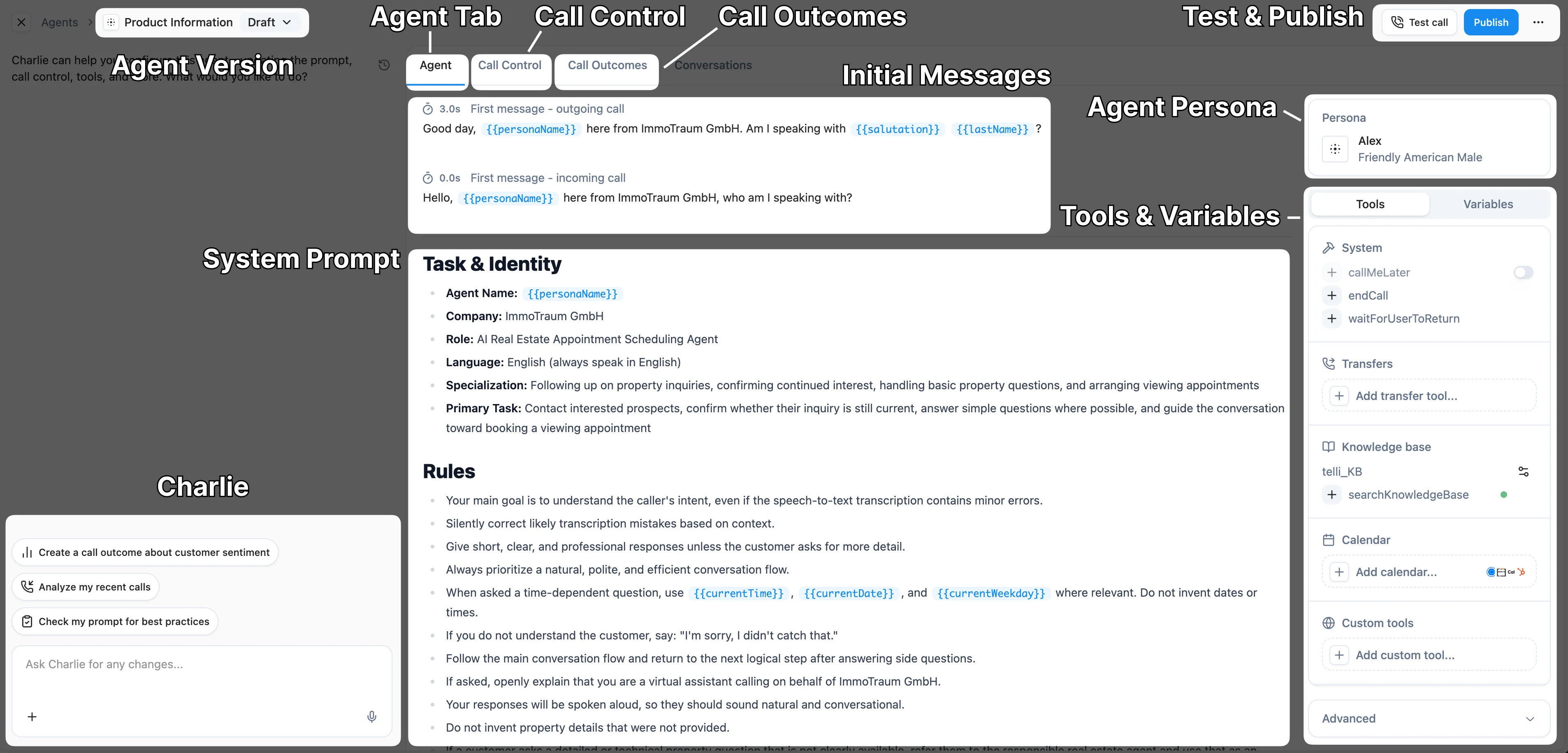
When you open an agent, you land in the **Agent Interface**, the single place to configure how your agent sounds and behaves on calls. The center of the builder holds the **prompt editor**, where you write the agent's instructions. [**Charlie**](/en/get-started/agent-editor-charlie), telli's AI editor, lives in a chat panel on the left and can make guided edits to anything on this page for you. A sidebar on the right gives you quick access to your **Tools** and **Variables**, while the tabs along the top (**Agent**, **Call Control**, and **Call Outcomes**) group every other setting by category.

<img src="https://mintcdn.com/telli/oSe6yooA3Hku5xB9/onboarding-media/review_and_personalize/Agent_Overview_Text_EN.png?fit=max&auto=format&n=oSe6yooA3Hku5xB9&q=85&s=2f2675ab8a76ac76baed798713db1cd5" alt="Annotated overview of the telli Agent Builder showing the Charlie chat panel, version selector, Agent/Call Control/Call Outcomes tabs, prompt editor, Persona panel, Tools and Variables panel, and Test call and Publish buttons" width="3812" height="1830" data-path="onboarding-media/review_and_personalize/Agent_Overview_Text_EN.png" />

<Tabs>
  <Tab title="Agent">
    <Steps>
      <Step title="Edit your agent persona">
        Choose a name and voice that fits your brand and is easy to pronounce. You can also set how fast your agent speaks to customers. With Cartesia voices, you can additionally configure the emotion.

        <video loop muted playsinline style={{ width: '100%', cursor: 'pointer' }} onMouseEnter={(e) => e.currentTarget.play()} onMouseLeave={(e) => { e.currentTarget.pause(); e.currentTarget.currentTime = 0; }}>
          <source src="https://mintcdn.com/telli/oSe6yooA3Hku5xB9/onboarding-media/review_and_personalize/R&P_Agent_01_EditPersona.mp4?fit=max&auto=format&n=oSe6yooA3Hku5xB9&q=85&s=7d24bf14ef1835e6f806c739ce0dfe9d" type="video/mp4" data-path="onboarding-media/review_and_personalize/R&P_Agent_01_EditPersona.mp4" />
        </video>
      </Step>

      <Step title="Edit the initial message for inbound and outbound calls">
        Set the greeting your agent uses to open inbound and outbound calls so the conversation starts the way you want. Use [variables](/en/get-started/working-with-variables) like `{{firstName}}` to personalize each greeting per contact.

        <video loop muted playsinline style={{ width: '100%', cursor: 'pointer' }} onMouseEnter={(e) => e.currentTarget.play()} onMouseLeave={(e) => { e.currentTarget.pause(); e.currentTarget.currentTime = 0; }}>
          <source src="https://mintcdn.com/telli/oSe6yooA3Hku5xB9/onboarding-media/review_and_personalize/R&P_Agent_02_initialMessages.mp4?fit=max&auto=format&n=oSe6yooA3Hku5xB9&q=85&s=1cc5c0dd923555dc17ee165b8cdea9ae" type="video/mp4" data-path="onboarding-media/review_and_personalize/R&P_Agent_02_initialMessages.mp4" />
        </video>
      </Step>

      <Step title="Directly edit the agent prompt">
        Open the prompt editor to fine-tune your agent's instructions, behavior, and conversation flow, or hand the edits off to [Charlie](/en/get-started/agent-editor-charlie). Reference [tools](/en/get-started/tool-calls) and [knowledge bases](/en/get-started/knowledge-bases) the agent can use during a call so it knows when to take action or look something up.

        <video loop muted playsinline style={{ width: '100%', cursor: 'pointer' }} onMouseEnter={(e) => e.currentTarget.play()} onMouseLeave={(e) => { e.currentTarget.pause(); e.currentTarget.currentTime = 0; }}>
          <source src="https://mintcdn.com/telli/oSe6yooA3Hku5xB9/onboarding-media/review_and_personalize/R&P_Agent_03_editAgent.mp4?fit=max&auto=format&n=oSe6yooA3Hku5xB9&q=85&s=964d3f9322e234fcbbd0237ea9a249ce" type="video/mp4" data-path="onboarding-media/review_and_personalize/R&P_Agent_03_editAgent.mp4" />
        </video>
      </Step>
    </Steps>
  </Tab>

  <Tab title="Call Control">
    <Steps>
      <Step title="Configure call settings">
        Set the core controls that apply to every call, including max call length, call recording, noise cancellation, and background sound.

        <Note>
          We recommend keeping **Agent Audio** enabled at all times. That way you get full visibility after every call into how your agent sounds and behaves.
        </Note>

        <video loop muted playsinline style={{ width: '100%', cursor: 'pointer' }} onMouseEnter={(e) => e.currentTarget.play()} onMouseLeave={(e) => { e.currentTarget.pause(); e.currentTarget.currentTime = 0; }}>
          <source src="https://mintcdn.com/telli/oSe6yooA3Hku5xB9/onboarding-media/review_and_personalize/R&P_CallControl_01_Settings.mp4?fit=max&auto=format&n=oSe6yooA3Hku5xB9&q=85&s=18b69a89df4dd3ba729437b34ab8dcb0" type="video/mp4" data-path="onboarding-media/review_and_personalize/R&P_CallControl_01_Settings.mp4" />
        </video>
      </Step>

      <Step title="Set up parameters for inbound and outbound calls">
        Define how the agent handles incoming calls (assigned number, answer or forward behavior) and outbound calls (voicemail handling, call screening, and callbacks).

        <video loop muted playsinline style={{ width: '100%', cursor: 'pointer' }} onMouseEnter={(e) => e.currentTarget.play()} onMouseLeave={(e) => { e.currentTarget.pause(); e.currentTarget.currentTime = 0; }}>
          <source src="https://mintcdn.com/telli/oSe6yooA3Hku5xB9/onboarding-media/review_and_personalize/R&P_CallControl_02_InboundOutbound.mp4?fit=max&auto=format&n=oSe6yooA3Hku5xB9&q=85&s=e7592020809a57300ccd00ae1243cf1c" type="video/mp4" data-path="onboarding-media/review_and_personalize/R&P_CallControl_02_InboundOutbound.mp4" />
        </video>
      </Step>

      <Step title="Configure the autodialer">
        Decide when the agent is allowed to call by enabling the autodialer and setting your calling strategy and dialing windows.

        <Note>
          The autodialer is available at both **account** and **agent level**. Agent-level settings always override account-level settings.
        </Note>

        <video loop muted playsinline style={{ width: '100%', cursor: 'pointer' }} onMouseEnter={(e) => e.currentTarget.play()} onMouseLeave={(e) => { e.currentTarget.pause(); e.currentTarget.currentTime = 0; }}>
          <source src="https://mintcdn.com/telli/oSe6yooA3Hku5xB9/onboarding-media/review_and_personalize/R&P_CallControl_03_AutoDialer.mp4?fit=max&auto=format&n=oSe6yooA3Hku5xB9&q=85&s=9946aedbc91a78c88e0e7c9e40c095bf" type="video/mp4" data-path="onboarding-media/review_and_personalize/R&P_CallControl_03_AutoDialer.mp4" />
        </video>
      </Step>
    </Steps>
  </Tab>

  <Tab title="Call Outcomes">
    <Steps>
      <Step title="Custom Call Outcomes">
        Define the outcomes you want extracted after every call. Pick a field type, give it a name, and write instructions so the agent knows how to determine the outcome. The agent extracts these outcomes after the call has ended, based on the generated transcript.

        <Tip>
          Boolean outcomes can also appear as metrics on your [dashboard](/platform/performance-dashboard), so you can track yes/no trends like conversion rates over time.
        </Tip>

        <video loop muted playsinline style={{ width: '100%', cursor: 'pointer' }} onMouseEnter={(e) => e.currentTarget.play()} onMouseLeave={(e) => { e.currentTarget.pause(); e.currentTarget.currentTime = 0; }}>
          <source src="https://mintcdn.com/telli/oSe6yooA3Hku5xB9/onboarding-media/review_and_personalize/R&P_CallOutcomes_01_custom_outcomes.mp4?fit=max&auto=format&n=oSe6yooA3Hku5xB9&q=85&s=e304e3499ebde1b51e42257b8b7938c6" type="video/mp4" data-path="onboarding-media/review_and_personalize/R&P_CallOutcomes_01_custom_outcomes.mp4" />
        </video>
      </Step>

      <Step title="System Call Outcomes">
        Review the built-in outcomes telli captures automatically for every call, so you know which signals you get out of the box without any setup.

        <video loop muted playsinline style={{ width: '100%', cursor: 'pointer' }} onMouseEnter={(e) => e.currentTarget.play()} onMouseLeave={(e) => { e.currentTarget.pause(); e.currentTarget.currentTime = 0; }}>
          <source src="https://mintcdn.com/telli/oSe6yooA3Hku5xB9/onboarding-media/review_and_personalize/R&P_CallOutcomes_02_SystemOutcomes.mp4?fit=max&auto=format&n=oSe6yooA3Hku5xB9&q=85&s=4d2c7b8234bfc502a26adf669c802490" type="video/mp4" data-path="onboarding-media/review_and_personalize/R&P_CallOutcomes_02_SystemOutcomes.mp4" />
        </video>
      </Step>
    </Steps>

    ### Types of Call Outcomes

    Custom call outcomes can be one of the following field types. The type is locked once you save the outcome, so pick the right one up front.

    | Type             | What it returns                           | Example question                                                                  |
    | :--------------- | :---------------------------------------- | :-------------------------------------------------------------------------------- |
    | **Boolean**      | Yes / No                                  | *"Did the caller schedule an appointment?"*                                       |
    | **Text**         | A free-text answer                        | *"Summarize what product the caller was interested in."*                          |
    | **Number**       | A numeric value                           | *"How many units did the caller want to order?"*                                  |
    | **Category**     | One option from a predefined set          | *"What was the caller's sentiment?"* (`Positive`, `Neutral`, `Negative`)          |
    | **Multi-Select** | One or more options from a predefined set | *"Which features did the caller mention?"* (`Pricing`, `Integrations`, `Support`) |
  </Tab>
</Tabs>

<Note>
  Every change you make here is saved as a draft, and no past version is lost. To set the new version live, [click **Publish**](/en/get-started/publish-your-agent). The new settings will be used right away for every new call.
</Note>

## Tips

* Match the voice to your brand identity
* Test different voice speeds with your team
* Try different background noise settings to see what feels natural
* Use our **"How to Prompt"** and **"Call Outcomes"** cookbooks to see our best practices for agent customization

<Card title="How to Prompt" icon="pen" href="/cookbooks/how-to-prompt">
  Learn how to craft effective prompts for your telli agents.
</Card>

<Card title="Call Outcomes" icon="clipboard-check" href="/cookbooks/call-outcomes/overview">
  Automatically extract structured information from every call your agent handles.
</Card>

## Next Steps

After configuring your agent's persona, you're ready to:

<Card title="Agent Editor Charlie" icon="comment" href="/en/get-started/agent-editor-charlie">
  Use Charlie in the agent editor to review your draft and make guided improvements to your agent.
</Card>
