> ## Documentation Index
> Fetch the complete documentation index at: https://docs.telli.com/llms.txt
> Use this file to discover all available pages before exploring further.
# Auto-Dialer
> Automated contact outreach system
The telli Auto-Dialer is a feature designed to make contact outreach efficient. It automatically schedules calls until either the contact is reached or gives up after a certain period.
## Call Loop
When a contact enters a "call loop," the system attempts to reach them repeatedly until one of two conditions is met:
1. The contact answers and has a conversation
2. The maximum number of attempts or days is reached
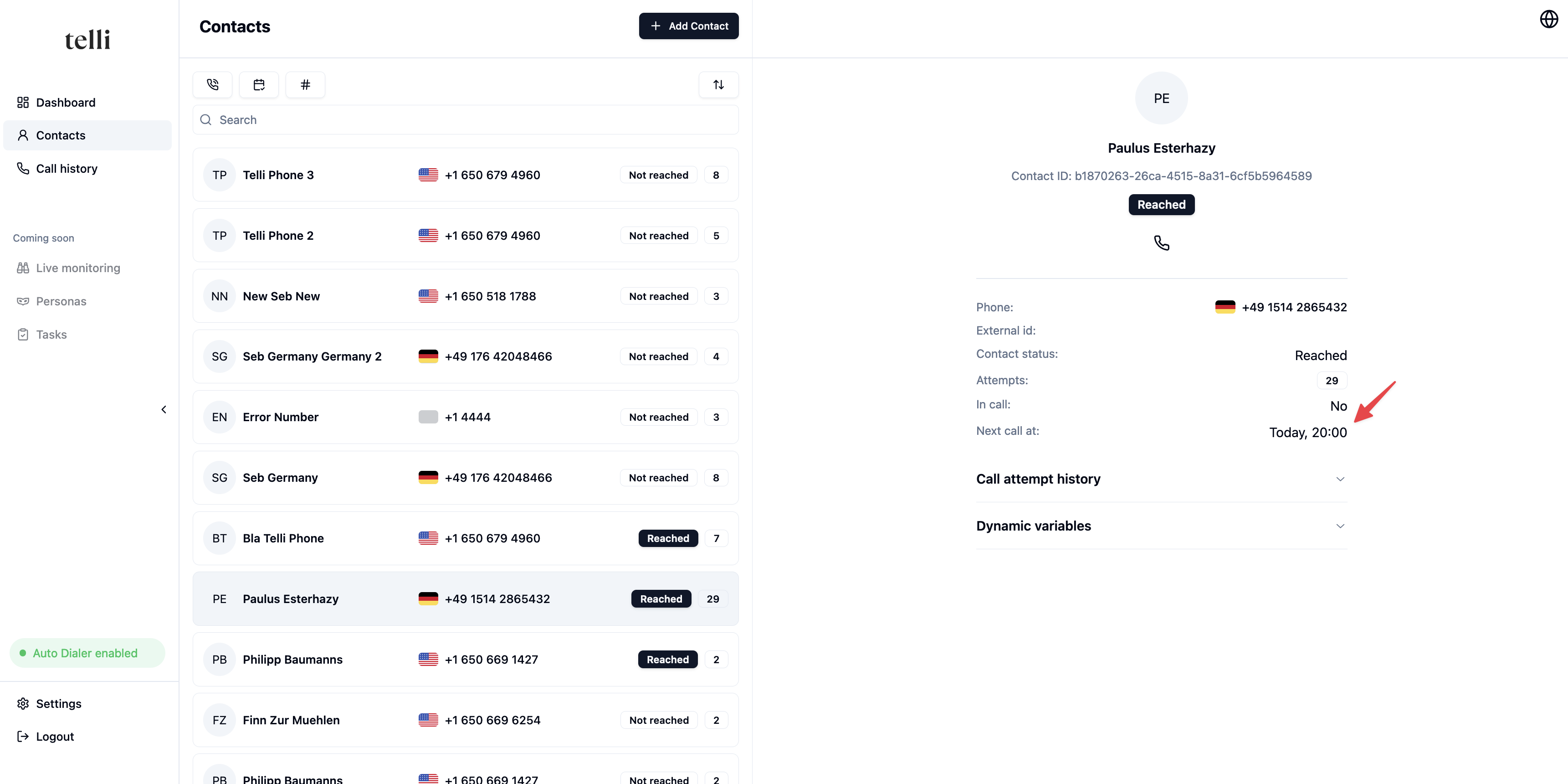
You can check a contact's next scheduled call via:
* The web app interface
* The [/get-contact](/v1/endpoint/get-contact) API endpoint
 ## Calling Strategies
The auto-dialer offers two strategies for scheduling call retries:
### 1. Smart Calling (Recommended)
Smart calling automatically adjusts call frequency over time. It starts with frequent attempts and gradually reduces to avoid overwhelming contacts.
#### Intensity Modes
Choose how aggressively the system should retry contacts:
Best for: **Time-sensitive campaigns, hot leads**
| Period | Call frequency |
| --------- | --------------- |
| Day 1 | Up to 3 calls |
| Days 2-10 | 2 calls per day |
| Day 11+ | 1 call per day |
Best for: **General outreach**
| Period | Call frequency |
| --------- | --------------- |
| Day 1 | Up to 3 calls |
| Days 2-4 | 2 calls per day |
| Days 5-10 | 1 call per day |
| Day 11+ | 1 call per week |
Best for: **Follow-ups, nurture campaigns**
| Period | Call frequency |
| -------- | --------------- |
| Day 1 | Up to 2 calls |
| Days 2-4 | 1 call per day |
| Day 5+ | 1 call per week |
All calls respect your configured [Dialer Windows](#dialer-windows) and enabled weekdays.
Days are calendar days from the first call attempt.
### 2. Defined Intervals
This strategy allows manual definition of retry intervals after unsuccessful calls.
Let's look at an example. Suppose we have the following intervals set:
## Calling Strategies
The auto-dialer offers two strategies for scheduling call retries:
### 1. Smart Calling (Recommended)
Smart calling automatically adjusts call frequency over time. It starts with frequent attempts and gradually reduces to avoid overwhelming contacts.
#### Intensity Modes
Choose how aggressively the system should retry contacts:
Best for: **Time-sensitive campaigns, hot leads**
| Period | Call frequency |
| --------- | --------------- |
| Day 1 | Up to 3 calls |
| Days 2-10 | 2 calls per day |
| Day 11+ | 1 call per day |
Best for: **General outreach**
| Period | Call frequency |
| --------- | --------------- |
| Day 1 | Up to 3 calls |
| Days 2-4 | 2 calls per day |
| Days 5-10 | 1 call per day |
| Day 11+ | 1 call per week |
Best for: **Follow-ups, nurture campaigns**
| Period | Call frequency |
| -------- | --------------- |
| Day 1 | Up to 2 calls |
| Days 2-4 | 1 call per day |
| Day 5+ | 1 call per week |
All calls respect your configured [Dialer Windows](#dialer-windows) and enabled weekdays.
Days are calendar days from the first call attempt.
### 2. Defined Intervals
This strategy allows manual definition of retry intervals after unsuccessful calls.
Let's look at an example. Suppose we have the following intervals set:
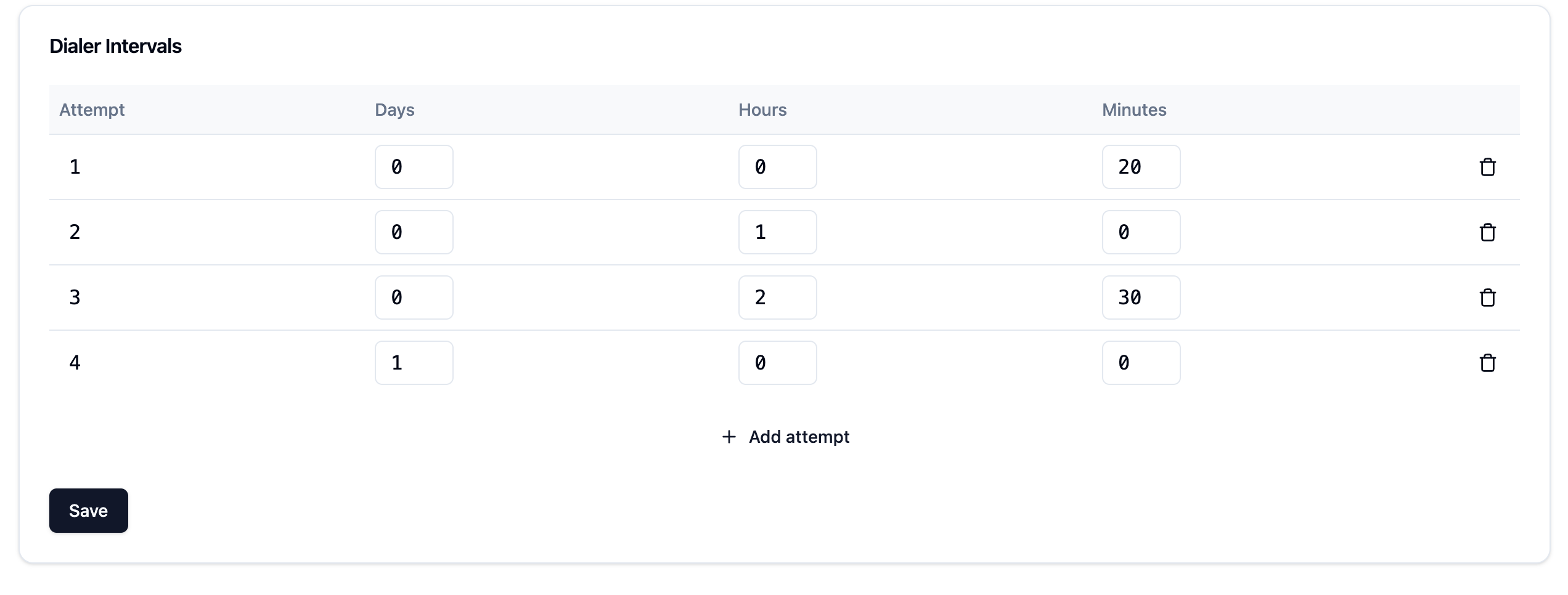 After the first call, we wait for 20min and then call again. After the second call we wait for 1h, after third 2h and 30min etc.
If a scheduled time falls outside the [Dialer Window](#dialer-windows), the call will be scheduled for the next available time.
## Dialer Windows
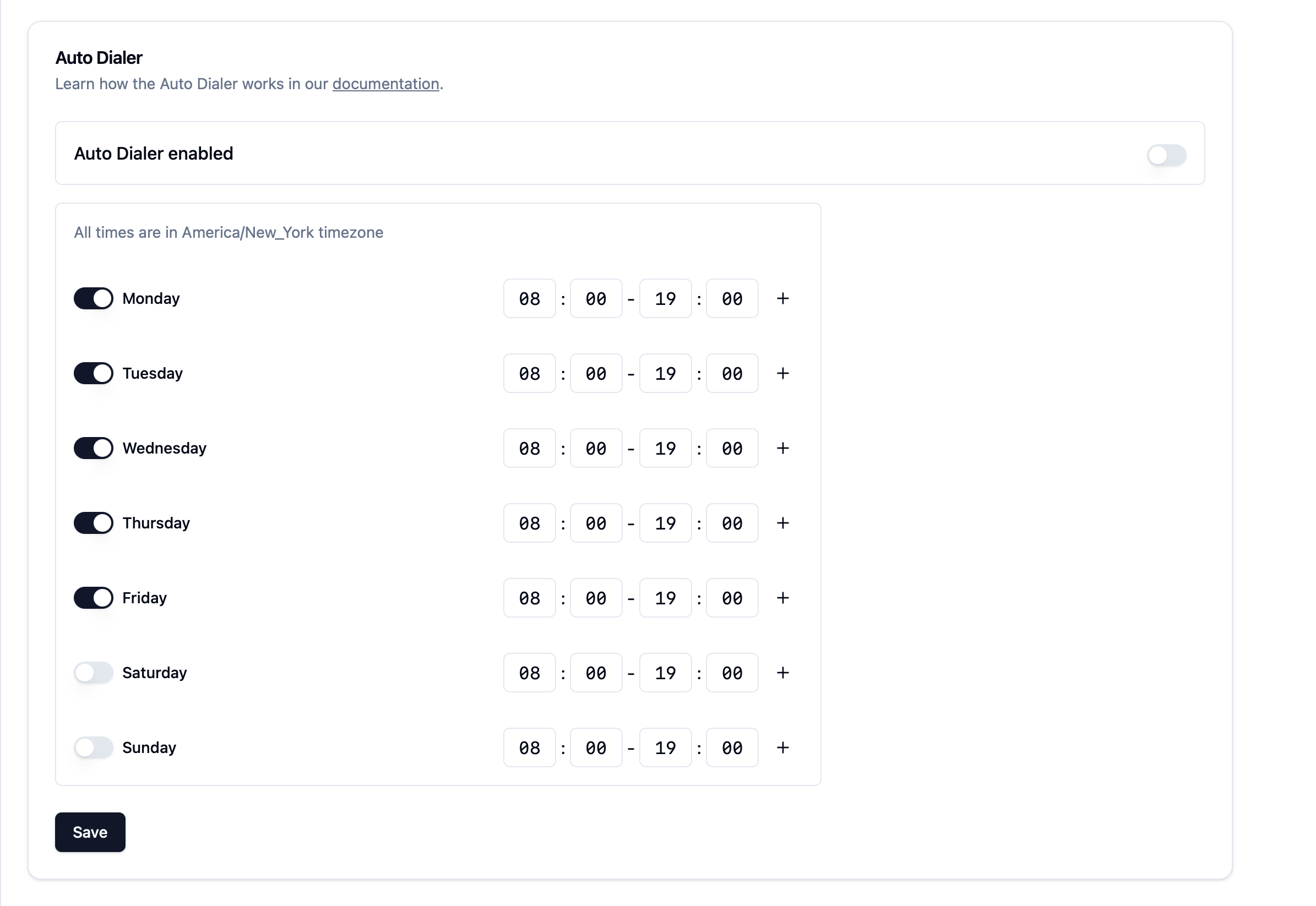
Dialer windows define permitted calling hours to ensure contacts are only called during appropriate times.
After the first call, we wait for 20min and then call again. After the second call we wait for 1h, after third 2h and 30min etc.
If a scheduled time falls outside the [Dialer Window](#dialer-windows), the call will be scheduled for the next available time.
## Dialer Windows
Dialer windows define permitted calling hours to ensure contacts are only called during appropriate times.
 ### Timezone Handling
Dialer windows are always interpreted in the contact's timezone when one is set. If no timezone is specified for a contact, the system defaults to using your account's timezone shown above the dialer windows.
For contacts with specified timezones, here's how it works:
* If your dialer window is set to 9:00 AM - 5:00 PM
* And you have a contact in Los Angeles (PST) and another in New York (EST)
* The Los Angeles contact will be called between 9:00 AM - 5:00 PM PST
* The New York contact will be called between 9:00 AM - 5:00 PM EST
This ensures calls are made at appropriate local times for each contact, regardless of your account's timezone setting.
Manual calls triggered via [/initiate-call](/v1/endpoint/initiate-call) or the web app bypass dialer window restrictions.
## Frequently Asked Questions
### When is a contact marked as reached?
A contact is considered reached when they answer and have a conversation. Voicemails, unanswered calls, or connection issues trigger retry attempts.
### What happens with calling errors?
After two consecutive errors, the call loop ends automatically, regardless of remaining attempts.
### How do manual calls affect the call loop?
Manual calls are executed immediately. If unsuccessful, the next call follows the defined strategy.
### What happens when dialer intervals change?
The system dynamically adjusts schedules while maintaining dialer window compliance.
### How are reached contacts handled?
Manually calling a previously reached contact restarts their call loop.
### How do maximum attempt changes work?
Changes take immediate effect for active call loops but don't affect completed ones.
### What happens when disabling/re-enabling the auto-dialer?
When re-enabled, past-due calls trigger immediately. To prevent this:
1. Use `/v1/remove-from-auto-dialer` for specific contacts
2. Adjust maximum intervals to auto-remove contacts
### Timezone Handling
Dialer windows are always interpreted in the contact's timezone when one is set. If no timezone is specified for a contact, the system defaults to using your account's timezone shown above the dialer windows.
For contacts with specified timezones, here's how it works:
* If your dialer window is set to 9:00 AM - 5:00 PM
* And you have a contact in Los Angeles (PST) and another in New York (EST)
* The Los Angeles contact will be called between 9:00 AM - 5:00 PM PST
* The New York contact will be called between 9:00 AM - 5:00 PM EST
This ensures calls are made at appropriate local times for each contact, regardless of your account's timezone setting.
Manual calls triggered via [/initiate-call](/v1/endpoint/initiate-call) or the web app bypass dialer window restrictions.
## Frequently Asked Questions
### When is a contact marked as reached?
A contact is considered reached when they answer and have a conversation. Voicemails, unanswered calls, or connection issues trigger retry attempts.
### What happens with calling errors?
After two consecutive errors, the call loop ends automatically, regardless of remaining attempts.
### How do manual calls affect the call loop?
Manual calls are executed immediately. If unsuccessful, the next call follows the defined strategy.
### What happens when dialer intervals change?
The system dynamically adjusts schedules while maintaining dialer window compliance.
### How are reached contacts handled?
Manually calling a previously reached contact restarts their call loop.
### How do maximum attempt changes work?
Changes take immediate effect for active call loops but don't affect completed ones.
### What happens when disabling/re-enabling the auto-dialer?
When re-enabled, past-due calls trigger immediately. To prevent this:
1. Use `/v1/remove-from-auto-dialer` for specific contacts
2. Adjust maximum intervals to auto-remove contacts